

You find the perfect photo, but it is tiny. Stretch it to fit a banner or a print, and it turns blocky or blurry. For years, that was the end of the story.
Today, an AI image upscaler can enlarge that photo two, four or even eight times while keeping it sharp. Better still, many of these tools cost nothing. The catch is that each free tool hides different limits, from tiny downloads to a handful of free credits.
For this guide, Tech Review Pages lined up 10 free AI upscalers and checked each one against its own website on October 29, 2026. You will learn which tools are truly free, how big you can print and when you should not upscale at all.
Quick Answer: The Best Free AI Image Upscalers
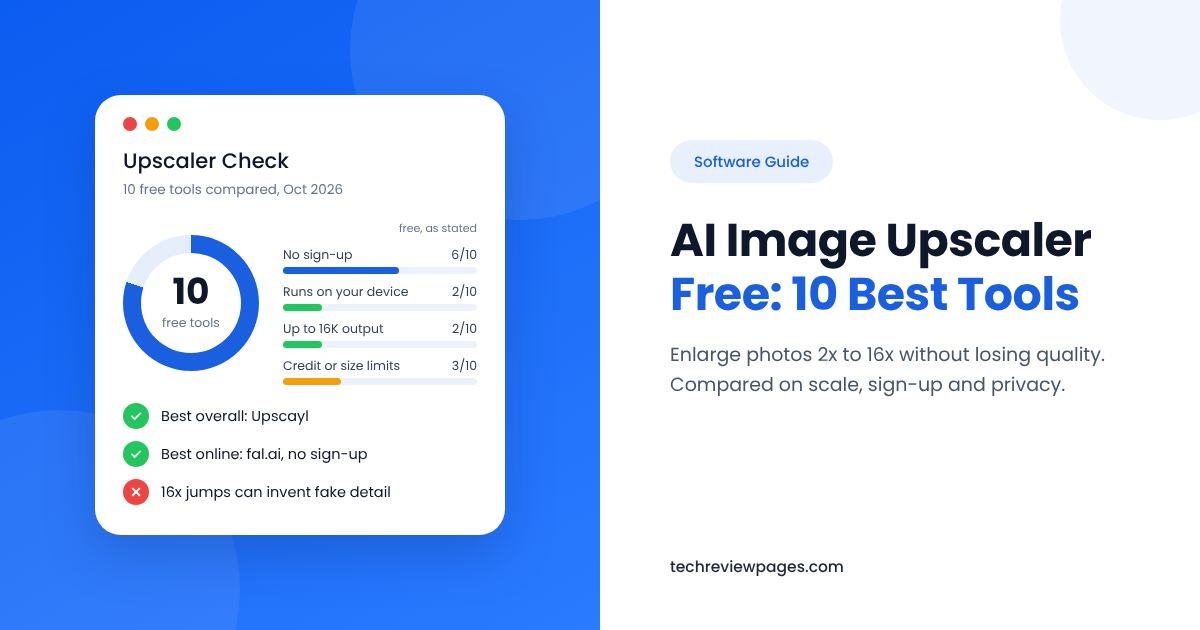
Best overall: Upscayl. A free desktop app that runs on your own computer.
Best online with no sign-up: fal.ai’s free upscaler. Up to 4x, no watermark.
Best built-in option: Windows Photos Super resolution, up to 8x on Copilot+ PCs.
Best for designers: Canva Upscale, which works on the free plan within your AI allowance.
Best for 16K outputs: Image-Upscaling.net or ImgUpscaler AI.
Best for anime art (tech users): waifu2x or Real-ESRGAN’s anime models.
Upscaling vs Resizing: Why Normal Enlarging Looks Bad
Every digital photo is a grid of tiny colored squares called pixels. When you resize a photo the normal way, the software has to invent new pixels to fill the gaps. Older methods do this with simple math, a process called pixel interpolation or image resampling.
We ran a simple test to show the problem. First, we drew our own 480 x 480 pixel scene. Next, we shrank it to just 80 x 80 pixels with the Lanczos method. Then we enlarged it four times with three classic methods. This test explains why AI is needed. It does not rank the tools below.
- Nearest neighbor copies each pixel into a bigger block. The result looks like a video game from the 1990s.
- Bicubic blends nearby pixels for smooth edges. Sadly, it also makes everything look soft and blurry.
- Sharpening helps a little, but it cannot bring back detail that is gone.
An AI image upscaler takes a different path. Instead of blending pixels with a fixed upscaling algorithm, it predicts what the missing detail should look like. That is why AI results look much closer to the real detail in the last panel.

How Does an AI Image Upscaler Work?
AI upscaling is also called super resolution, and it relies on deep learning. The AI model is a neural network that studies millions of photo pairs, each with a sharp version and a blurry, low-resolution copy. Over time, it learns how edges, skin, hair, text and textures usually look up close.
Many popular upscalers use a type of AI called a GAN, short for generative adversarial network. One part of the network creates the bigger image. A second part tries to spot whether it looks fake, which pushes the first part to make results look more natural. The well-known ESRGAN and Real-ESRGAN models work this way.
There is one big catch. Because the AI predicts detail, it can also invent detail. A blurry face may come back with the wrong eye shape, or fuzzy text may turn into made-up letters. Keep that in mind, especially for faces, signs or documents. The same risk shows up in AI portraits, which our free AI headshot generator guide covers in detail.

How Much Do You Need to Upscale? A Quick Size Guide
Before you increase image resolution, figure out how many pixels you really need. For screens, you need far fewer pixels than for prints. The print sizes below assume 300 pixels per inch, the common rule for sharp photos viewed up close.
| Where the Image Will Go | Pixels You Need | From a 1000 px Photo |
|---|---|---|
| Instagram post | 1080 px wide | About 1x, no upscale needed |
| YouTube thumbnail | 1280 x 720 px | About 1.3x |
| Full HD screen | 1920 x 1080 px | About 2x |
| 4K screen or wallpaper | 3840 x 2160 px | About 4x |
| 4 x 6 inch print | 1200 x 1800 px | About 2x |
| 8 x 10 inch print | 2400 x 3000 px | About 3x to 4x |
| 16 x 20 inch poster | 4800 x 6000 px | About 6x to 8x |
Big posters are usually seen from farther away, so 150 to 200 pixels per inch is often enough for them. That means you may need less upscaling than the table shows.
A good habit is to pick the smallest scale that meets your goal. A 2x or 4x upscale usually looks more natural than 8x or 16x, because the AI has less detail to invent.
Free AI Image Upscalers Compared
Here is how the 10 tools stack up on what matters most for free users. All details reflect each tool’s site as of October 29, 2026.
| Tool | Type | Free Scale | Sign-Up? | Best For |
|---|---|---|---|---|
| 1. Upscayl | Desktop app | Several AI models; no use limits | No | Private, unlimited upscaling |
| 2. fal.ai upscaler | Website | Up to 4x, full size | No | Quick online upscales |
| 3. Windows Photos | Built into Windows 11 | 1x, 2x, 4x or 8x | No | Copilot+ PC owners |
| 4. Canva Upscale | Website and app | Auto 4x or 16x, up to 50MP | Yes | Designers on Canva |
| 5. Image-Upscaling.net | Website | 4x, up to 16K | No | Very large outputs |
| 6. ImgUpscaler AI | Website | Up to 16K, per its site | No | Fixing pixelated photos |
| 7. Photiu | Website | Not stated | No | Quick one-off upscales |
| 8. Cloudinary | Website | Not stated | Not stated | Web images and graphics |
| 9. Upscale.media | Website and app | 3 free credits | Yes | Occasional single images |
| 10. Picsart | Website and app | 2x or 4x; low-res free download | Not stated | Previews before you pay |

The 10 Best Free AI Image Upscalers, Reviewed
1. Upscayl: Best Free AI Upscaler Overall
Upscayl is a free, open-source desktop app for Windows, Mac and Linux. It runs on your own computer, so your photos never leave your device. There are no credits, no watermarks and no account.
The app offers several AI models, including a newer “High Fidelity” option, and you can add custom models too. A batch mode lets you upscale a whole folder at once, which makes it great for batch image upscaling.
How big can it go? Upscayl’s official guide says its default models upscale 4x. Other sizes are made by resizing that 4x result. Google’s AI summary says Upscayl reaches 16x, but we could not confirm a maximum on Upscayl’s own pages.
The catch: Upscayl needs a graphics card that supports Vulkan. According to its download page, CPU-only mode is not supported, and many built-in laptop graphics chips will not work. Its desktop code uses the AGPLv3 open-source license.
2. fal.ai Free Upscaler: Best Online Option With No Sign-Up
fal.ai runs AI models for app developers, but its free image upscaler works for anyone. The page promises up to 4x the resolution, free every time, without an account or a logo stamped on top. It accepts JPEG, PNG and WebP files.
It is a quick, simple free AI upscaler online when you do not want to make an account. Like most web tools, though, your photo is uploaded to a server, so skip it for private pictures.
3. Windows Photos Super Resolution: Best Built-In Option
If you own a Copilot+ PC with Windows 11, you already have a free AI photo upscaler. Microsoft’s Super resolution help page says the AI runs on your device, so nothing is sent to outside servers.
- Open your image in the Photos app.
- Select Edit, then choose Super resolution.
- Pick a level: 1x, 2x, 4x or 8x.
- Compare the before and after preview, then save.
The only downside is the hardware. Older Windows PCs without Copilot+ features do not get this tool.
4. Canva Upscale: Best for Designers
Unlike Canva’s background remover, its upscaler works on the free plan. Canva’s help page says each use on Canva Free counts against your AI allowance. Paid plans do not use up that allowance.
You cannot choose the scale yourself, since Canva picks 4x or 16x automatically. It accepts JPG and PNG images up to 25 megapixels, with results up to 50 megapixels. Each image can only be upscaled once. Canva also warns that faces and text may not always come out perfect.
5. Image-Upscaling.net: Best for Huge Outputs
According to its own site, Image-Upscaling.net scales images by 400%, all the way up to 16K. It promises no sign-up, no watermark and no paywall. Since its page is silent on how long it keeps uploads, use it for public images only. It is a handy free online image upscaler for big prints.
6. ImgUpscaler AI: Best for Fixing Pixelated Photos
ImgUpscaler AI is a free web tool that, according to its site, increases image resolution, fixes pixelated photos and sharpens details. Its site says it can upscale images to 16K with no sign-up. It does not state a watermark policy or how long uploads are kept, so test it on a public image first.
7. Photiu: Best for Quick One-Off Upscales
Photiu offers a free AI image upscale tool that its site says needs no sign-up. It aims to improve image quality in a single step. The site does not list a maximum scale, so check the final size before you download.
8. Cloudinary: Best for Web Images and Graphics
Cloudinary is a large image hosting company used by many websites. Its free online upscale tool can enlarge photos, images and graphics in seconds. In Google results in October 2026, the tool showed a 4.7 rating from 3,429 reviews. Those stars come from the site’s own page, not an independent test.
9. Upscale.media: Best for an Occasional Image
Upscale.media enlarges JPG, PNG and WebP images in seconds. Its free plan is small, however. The pricing page mentions 3 free credits. One part of the page says you get them every month, while the FAQ says they come once when you sign up. Paid credit packs start at $7.99 for 60 credits. It suits a quick one-off job better than regular use.
10. Picsart: Best for Previews
Picsart’s upscaler offers 2x, 4x or a custom size. Its FAQ says the upscaled image cannot be larger than 4096 pixels. Free users can download a low-resolution version, while high-resolution downloads need a paid plan. Think of it as a free preview tool rather than a full free upscaler. In Google results in October 2026, Picsart’s upscaler page showed a 4.9 rating from 7,890 reviews, which also come from Picsart’s own page.
Credit-Based Option: Adobe Firefly
Adobe Firefly is not on our main list because it runs on credits. It can upscale images 2x or 4x. You can even choose between Adobe’s own model and Topaz Labs models inside Firefly. However, Adobe’s help page says upscaling uses generative credits. How many free upscales you get depends on the credits in your Adobe plan.
For Tech Users: Real-ESRGAN and waifu2x
These two open-source models are not on our main list, since they need a bit of technical setup. Still, they power many of the tools above.
Real-ESRGAN is the open-source AI model behind many popular upscalers, including several on this list. It was built to handle messy, real-world photos, not just clean test images. Its code uses the BSD-3-Clause license, which allows business use.
The project offers ready-made programs for Windows, Mac and Linux, so you do not need to know how to code. You run them from the command line. It also includes special models for anime and optional face restoration.
waifu2x was one of the first free AI upscalers. It was trained mainly on anime-style art, so it keeps clean lines and flat colors sharp. It also removes the blocky noise that JPG compression leaves behind. For real photos, Upscayl or Real-ESRGAN usually do better.
What About Paid Upscalers?
Paid tools like Topaz Gigapixel offer more control and extra models for faces or heavy restoration. Check Topaz’s site for current pricing. For most people, the free tools above are enough. Try them first, then pay only if you hit a real limit.
16x and 16K Upscaling: When It Helps and When It Does Not
Some tools promise 16x upscaling or 16K results. A 16K image is about 15,360 pixels wide, which is huge. So when does that make sense?
- It helps for giant prints, like banners or wall murals, that start from a decent photo.
- It helps for tiny icons or old web graphics that need to fill a modern screen.
- It does not help for social media. Instagram and most sites shrink images to around 1080 pixels anyway.
- It does not help when the starting photo is very small or blurry. At 16x, the AI must invent 255 of every 256 pixels, so fake textures are likely.
If you truly need a giant file, upscale in steps. Go 4x first, check the result, then upscale again only if needed. Also expect huge file sizes, often many megabytes per image.
What Reddit Users Recommend
Many people search Reddit for honest upscaler advice. A summary of Reddit discussions from April 2026 found that Upscayl was the most mentioned free option. Users in groups like r/StableDiffusion and r/upscaling often suggest it as a free alternative to paid tools like Topaz.
The same summary found strong praise for advanced models like SUPIR and SeedVR2. Users warned that these need a powerful graphics card, and a tricky setup with tools like ComfyUI. The most common quality complaint was faces that come out looking smooth and “waxy.” That matches our advice to check faces closely after every upscale.
Free AI Upscaler Apps for iPhone and Android
If you mostly edit on your phone, try these options:
- Canva app: the same Upscale tool as on the web, using your free AI allowance.
- Picsart app: 2x or 4x upscaling, though full-quality downloads need a paid plan.
- Upscale.media app: available free on Google Play, with the same credit limits as its website.
- Your browser: web tools like fal.ai and Image-Upscaling.net also work in a phone browser.
Want more ways to edit on the go? Browse our best photo editing apps list.
AI Image Upscaler vs AI Image Enhancer: What Is the Difference?
These two terms get mixed up a lot. An upscaler makes an image bigger by adding pixels. An AI image enhancer improves how an image looks, often without changing its size. It might fix blur, lighting, color or noise.
Many tools now do both. Apps like Remini focus on restoring blurry faces, while services like Let’s Enhance, VanceAI and Bigjpg mix image enlargement with quality fixes. Their free and paid terms change often, so check each site before you rely on it.
So which do you need? If your photo is too small, use an upscaler. If it is the right size but looks dull or soft, an AI image quality enhancer is the better fit. Some tools, like Picsart, combine both steps to enhance image details while they enlarge.
How to Fix a Pixelated Photo With AI
A pixelated photo shows blocky squares, often because it was heavily zoomed, cropped or compressed. AI upscalers are very good at smoothing those blocks into natural edges.
- Find the largest version of the photo you can. Check your email, cloud backups or the original camera roll.
- Run it through an upscaler at 2x first, not 8x.
- If blocks remain, try a different AI model, such as one made for photos or one made for art.
- Finish with light sharpening, then save a copy.
If your photo is pixelated because it was made very small, set your expectations. AI can make it look clean, but it cannot recover detail that was never captured.
How to Upscale an Image for Free in 4 Steps
Most free tools follow the same simple steps. Follow these to upscale images without losing quality:
- Start with the best copy you have. Use the original file, not a screenshot or a photo sent through a chat app.
- Pick the right scale. Use the size guide above. Choose 2x or 4x when you can, since lower scales look more natural.
- Upload and process. Drop the image into your tool, choose the scale, then let the AI work.
- Zoom in to check. Look closely at faces, text and edges. If something looks strange, try a different model or a lower scale.
Tips for Better Free Upscales
Fix noise first. Grainy photos upscale better after a light noise reduction pass. Save heavy image sharpening for the very end.
Choose the right model. Use photo models for real photos and anime models for drawings.
Do not upscale twice. Running an image through the AI again often adds strange textures.
Save as PNG if you plan to edit the image more, so you avoid extra JPG compression.
Best Free Upscaler for Each Job
| If You Want To… | Try This | Why |
|---|---|---|
| Restore old family photos | Upscayl or Windows Photos | Private, on-device processing |
| Enlarge product photos for a store | Upscayl or fal.ai | Full-size results with no watermark |
| Upscale anime or cartoon art | waifu2x | Built for clean lines and flat colors |
| Print a poster | Image-Upscaling.net or Upscayl | Large outputs for big prints |
| Upscale inside a design | Canva Upscale | Works right in your Canva project |
| Process hundreds of images | Upscayl or Real-ESRGAN | No credits or daily caps |
| Upscale on a phone | Canva or Picsart apps | Mobile apps with simple controls |
Selling online? Sharp, large product photos help shoppers zoom in. Our ecommerce photo editing guide covers marketplace size rules. To cut out a product after upscaling, see our list of the best free AI background remover tools.
Is Free AI Upscaling Safe?
Free upscaling is safe for most everyday images, whether you use a web tool or a desktop app for image scaling. Still, most web tools upload your photo to their servers. Some do not explain how long they keep it.
- Keep private photos on your own machine. Upscayl, Windows Photos and Real-ESRGAN all process images on your own computer.
- Read the privacy policy before uploading client work.
- Avoid uploading ID cards or anything with personal details.
- Download apps only from official pages. Fake “free upscaler” downloads can hide malware.
Case Study: When a Court Rejected AI-Enhanced Video
AI upscaling looks like magic, but it does not reveal hidden truth. A 2024 court case in Washington state shows why that matters.
Joshua Puloka was charged in a 2021 shooting outside a bar near Seattle. His defense team wanted to show the jury a cellphone video of the event. A man with video production experience had enhanced that video using AI software from Topaz Labs.
King County Superior Court Judge Leroy McCullogh refused to allow it. As NBC News reported, he said the technology uses “opaque methods to represent what the AI model ‘thinks’ should be shown.” The prosecution’s video expert added a key point. He said the enhanced video contained visual data that was not in the original, while some original data was removed. Topaz Labs itself told NBC News that it strongly recommends against using its AI for forensic or legal work.
What This Means for Everyday Users
- AI upscaling adds guesses, not facts. It makes images look better, not more truthful.
- Never use upscaled images as proof. That includes insurance claims, legal cases or official documents.
- Keep the original file. Always save the untouched version next to the upscaled one.
- Be careful with faces and text. These are where AI is most likely to invent wrong details.
Conclusion: Best AI Image Upscaler
Finding an AI image upscaler free of hidden catches is easier than it looks. For most people, Upscayl is the best choice, since it is unlimited, private and watermark-free. If you want a quick online tool without an account, fal.ai is hard to beat. Copilot+ PC owners already have a strong free option in the Windows Photos app.
Before you start, use the size guide to choose the smallest scale you need. A 2x or 4x upscale almost always looks more natural than a giant jump. Then zoom in on faces and text to check the AI’s work.
Finally, remember the lesson from the Puloka case. AI upscaling makes photos look better, but it guesses at detail. Keep your originals, avoid using upscaled images as proof and enjoy sharper photos without paying a cent.
Frequently Asked Questions
What is the best free AI image upscaler?
Upscayl is the best free pick for most people, because it is unlimited, private and has no watermark. For a quick online option with no sign-up, try fal.ai’s free upscaler.
Is there a free AI image upscaler with no sign-up?
Yes. Upscayl, fal.ai, Image-Upscaling.net, ImgUpscaler AI and Photiu all work without an account. Windows Photos also needs no sign-up on Copilot+ PCs.
Can I upscale images without losing quality?
AI upscalers keep images much sharper than normal resizing. Results look best at 2x or 4x. Very large jumps, like 16x, can create fake-looking textures.
What is the difference between upscaling and resizing?
Resizing uses simple math to stretch pixels, which often looks blurry. AI upscaling predicts new detail, so the result looks sharper.
Can a free image upscaler make 4K images?
Yes. fal.ai and Upscayl can produce 4K-size images from smaller files. Image-Upscaling.net says it can reach 16K.
Is there a free 16x image upscaler?
Canva may apply 16x automatically to small images. Image-Upscaling.net and ImgUpscaler AI both say they reach 16K. For the most natural look, stick to 4x when possible.
Is Canva’s upscaler free?
Yes, within limits. Canva Free can use Upscale, but each use counts against your AI allowance.
Why do upscaled images sometimes look strange?
The AI guesses missing detail. On faces, text or very small images, those guesses can be wrong, which creates odd textures or shapes.
