

Removing a background can turn an ordinary photo into a clean product shot, a sharp profile picture or an eye-catching YouTube thumbnail. Canva makes this job fast with its Background Remover tool. In most cases, it takes just one click.
There is one catch that confuses many people. Canva’s help center says the tool is part of paid plans. Saving a transparent PNG is too. Yet Canva’s own landing page is titled “Remove image background for free.” We explain what that really means below. If you are on the free plan, you will also find honest ways to delete the background in Canva. Two of them are fully free for schools and nonprofits.
Searching for how to remove background on Canva from a phone instead? That is covered too.
At Tech Review Pages, we checked every step against Canva’s own help pages on October 19, 2026. You will learn the desktop and mobile steps, plus how to fix rough edges. We also cover saving a transparent background, along with fixes for common errors.
Quick Answer: How Do You Remove a Background in Canva?
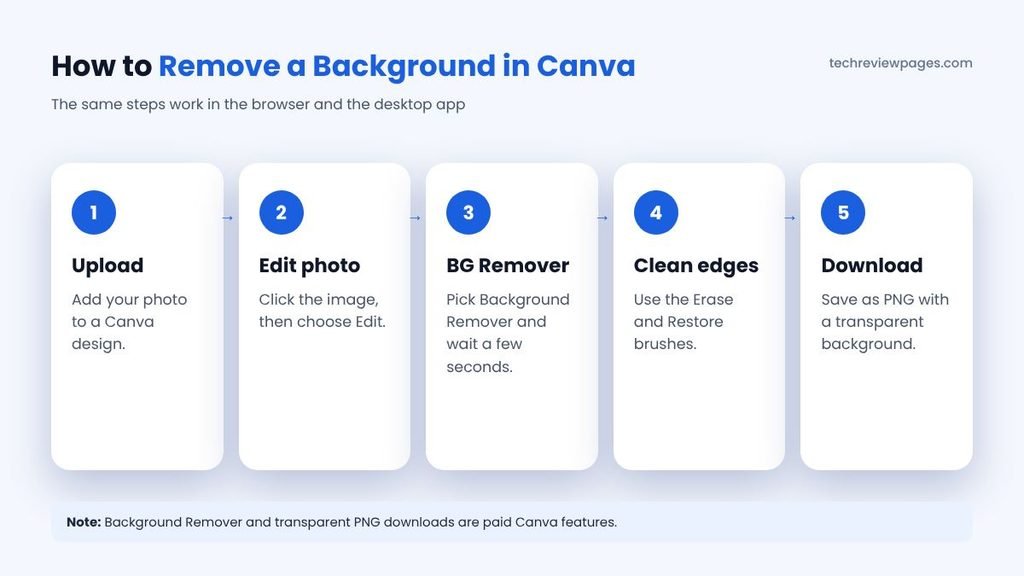
1. Upload your photo and add it to a design.
2. Click the photo to select it.
3. Click BG Remover in the toolbar above the editor.
4. Use the Erase or Restore brush to clean up any rough spots.
5. Download as a PNG with Transparent background turned on.
Note: The Background Remover and transparent downloads need Canva Pro or another eligible plan. Canva Education and Canva Nonprofits include it for free if you qualify.
What You Need Before You Start
Check these requirements first. They explain most of the problems people run into.
| Requirement | Details (from Canva’s help pages, October 2026) |
|---|---|
| Canva plan | Paid plans such as Canva Pro, Teams or Business. Also free for verified K-12 schools (Canva Education) and eligible nonprofits (Canva Nonprofits) |
| File types | JPG, PNG, HEIC or HEIF photos |
| File size | Photos must be under 9MB |
| Resolution | Photos larger than 10MP are scaled down to 10MP after removal |
| Not supported | Vector images, such as SVG logos |
| Transparent download | PNG format, on eligible plans only |
| Usage limits | Canva caps AI tool use. See its “Understand your AI usage” page for your current limit |
For a single user, Canva Pro runs $144 a year, as listed in October 2026. Canva also offers a free trial of Pro once per account.
Is the Canva Background Remover Free? What the “Free” Page Means
Canva’s background remover page says you can remove an image background for free. The same page also says “Sign up for Canva Pro for unlimited usage.” Its help center states that the tool is “included with paid plans.”
Put together, this means free accounts may get a small taste at best. Canva does not publish a free allowance, so it can change at any time. Most free users see a crown icon on BG Remover with an upgrade box. If you see that box, your account has no free uses left.
What about heavy use on paid plans? Google’s AI summary quotes a limit of 500 images every 24 hours. We could not find that number on Canva’s current help pages, which point to the AI usage page instead. Treat 500 as a rough guide, not a promise.
How to Remove Image Background in Canva on a Computer
This method works in a web browser or the Canva desktop app. Removing photo backgrounds used to take careful work with a pen tool. Now the Canva background remover tool, part of Canva Magic Studio, does it step by step for you. It can erase the background in Canva with a single click.
- Open or create a design. Start a new design, such as an Instagram post, or open an existing one.
- Upload an image to Canva. Click Uploads in the side panel of the Canva editor, then choose Upload files to add a photo from your computer.
- Add the photo to your page. Click the uploaded photo, or drag it onto the canvas.
- Select the photo. Click it once so the toolbar shows image options.
- Click BG Remover. Find BG Remover in the toolbar above the editor, which is why many people call it the Canva BG remover. On some layouts, it sits inside Edit or Effects.
- Wait a few seconds. Canva’s AI finds the foreground subject, then erases everything else to create a clean image cutout.
That is all it takes for most photos. If you have ever wondered how to erase the background of a picture quickly, this is the fastest way. You can now place your cut out subject over a new color or template to build a layered design.
Remove a Background From an Image Without Opening a Design
You can also work straight from your files by opening Projects, then Images. Hover over a photo, select the More button, choose Edit image and pick BG Remover under Tools.
How to Fix Rough Edges With the Erase and Restore Brushes
The AI usually does a great job, but hair, glasses or busy backgrounds can leave small mistakes. Canva gives you two brushes to fix them.
- Select the image, then click BG Remover again.
- Choose the Erase brush to remove leftover background, or the Restore brush to bring back missing parts of your subject.
- Move the Brush size slider to make the brush bigger or smaller.
- Drag the brush over the areas you want to change.
- Click Show original image to compare your result with the original photo.
- Use the undo and redo buttons in the brush panel if you make a mistake.
Canva’s help center notes that normal zooming does not work while you use these brushes. For tiny details, zoom in on your design first, then open the brush tool.
How to Make a Transparent Background in Canva and Save It as a PNG
Removing the background is only half the job. To make the background transparent in Canva and get a Canva transparent background, you must also download the image the right way. These steps also answer a common question: how to make an image transparent for a website or slide.
- Make sure the page background is white, or select it and delete it with the trash icon.
- Click Share, then Download.
- Choose PNG as the file type.
- Turn on Transparent background.
- Pick the size and quality you want.
- Click Download.
This transparent background export gives you a PNG you can place on websites, slides or other designs. The JPG format cannot hold transparency, so always choose PNG. Canva also notes that Canva Docs cannot be downloaded with a transparent background.
Do not confuse this with the Canva image transparency slider, which simply fades the whole picture. If your download still shows a white box, the page background was probably not deleted or set to white. Go back, fix the background, then download again.
How to Remove Background in Canva on iPhone and Android
The Canva mobile app works almost the same way. These steps cover iPhone, iPad and Android phones.
- Open the Canva app and start or open a design.
- Tap Uploads to open the Canva upload image panel, then add your photo.
- Tap the photo on your page to select it.
- Scroll the bottom toolbar and tap BG Remover. On some app versions, it sits inside Effects.
- Wait for the background to disappear.
- Tap the download icon, choose PNG and turn on Transparent background.
Editing on a phone is handy, though fine edges are easier to fix on a bigger screen. For tricky photos, start on your phone and finish on a computer.
How to Remove Backgrounds From Many Images at Once
Canva can also process a whole folder, which saves time for online sellers. Go to Projects, hover over a folder, select More and choose Remove background. Canva then creates a new folder with “Edited” in its name, so your originals stay safe.
You can also open a folder, tick several images and select BG Remover from the bottom toolbar. According to Canva, bulk removal handles up to 50 images per folder. It only works on photos you uploaded, not Canva library images or designs.
Tips for Common Background Removal Jobs
| What You Are Editing | Helpful Tip |
|---|---|
| Product photo for an online store | Shoot on a plain, light background so the AI finds clean edges. Then add a white or soft color behind the product. |
| Logo with a white background | Upload it as a PNG or JPG, since vector SVG files are not supported. Use the Restore brush if thin lines vanish. |
| Signature | Photograph it on clean white paper in good light. Remove the background, then save as a transparent PNG. |
| Portrait or profile photo | Use the Restore brush around hair. Then place the person on a blurred or solid background. |
| YouTube thumbnail | Cut yourself out, then place the cutout over bold colors and large text. |
| T-shirt design | Download a transparent PNG at the largest size your printer allows. |
How to Remove a White Background in Canva
A white background is one of the easiest to remove. Canva’s white background remover is the same BG Remover tool. Select the image, then click BG Remover as usual. Canva’s AI separates the subject from the white area in seconds. That makes it easy to remove a white background in Canva for logos and product shots. Sellers use this trick all the time for clean product listings.
Watch out if your subject also contains white parts, such as a white shirt or white text in a logo. The AI may erase them by mistake. Use the Restore brush to paint those parts back.
How to Remove Background in Canva Without Pro
Many people search for a way to remove a background in Canva without paying, or to remove background from image free of charge. On the standard free plan, the Background Remover is locked. Still, you have a few honest options.
Option 1: Check if You Qualify for Canva Education or Nonprofits
This is the route most guides skip. Canva Education is free for verified K-12 teachers and their students. Canva says it includes the Pro features, Background Remover among them. Teachers name their school, then upload proof if asked. Approval can take up to 7 days in busy times.
Canva Nonprofits is also free for registered charities and nonprofits that pass Canva’s review. In the United States, that usually means 501(c)(3) status. Government groups, political groups and schools are not eligible for this program. Schools use Canva Education instead.
Option 2: Use the Canva Pro Free Trial
Canva lets each account try Pro for free once. During the trial, you can use the Background Remover and download transparent PNGs. Set a reminder to cancel before the trial ends if you do not want to pay.
Option 3: Remove the Background With a Free Tool, Then Upload It
You can cut the background out of a picture for free with another tool, then upload the result to Canva. Adobe Express offers free background removal in its online editor. Photopea, a free browser editor, also has tools for cutting out a subject.
Once you upload a transparent PNG into Canva, you can place it on top of any free design. This works well for thumbnails, flyers and social posts. Downloading the finished design with a transparent background still needs a paid plan, though.
Option 4: Hide the Background With a Frame or Crop
For simple photos, you can crop tightly or drop the image into a frame shape. This does not truly remove the background, but it can hide it well enough for a quick social post.
Many more no-cost tools are compared in our free photo editing software article.
Tricky Subjects: Hair, Fur, Shadows and Glass
One-click tools work best when the subject stands out from a plain backdrop. Some photos will push any AI to its limit. Here is what to expect and when to switch tools.
| Subject | What Usually Goes Wrong | What to Do |
|---|---|---|
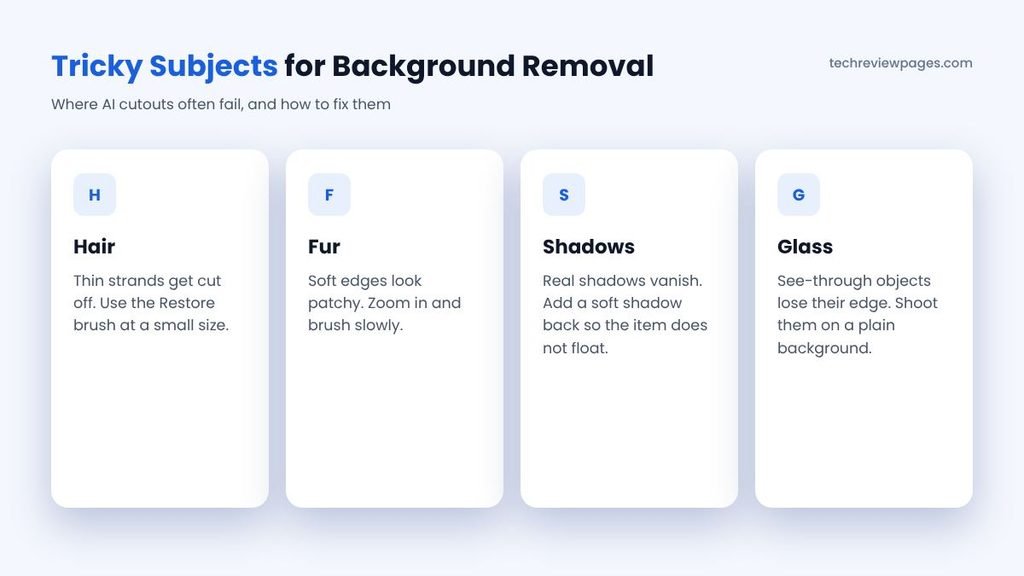
| Loose hair or fur | Fine strands get cut off or keep a halo of old background | Use the Restore brush with a small size. Place the cutout on a color close to the old background to hide halos. |
| Whiskers or thin wires | They vanish because they are only a few pixels wide | Paint them back with Restore, or redraw thin lines with a line element. |
| Soft shadows | The shadow is removed, so the subject looks like it floats | Add a new shadow with the Shadows effect, or keep the original shadow by restoring it. |
| Glass and see-through items | The background shows through the glass, so the AI keeps or drops it unevenly | Use a manual tool with feathered edges, or reshoot on plain white. |
| Subject matches the background | A white shirt on a white wall loses its edges | Reshoot with contrast if you can. Otherwise, clean up by hand with Restore. |
If a cutout still looks rough after a few minutes of brushing, stop fighting it. A desktop editor with masks gives you far more control. Our professional photo editing software guide covers those tools.
How to Remove a Background Without AI
Some creators now want a cutout with no AI involved at all. This grew after the Instagram label problem described in the case study below. The fix is an old-school manual cutout. It takes a few minutes, but you control every edge.
Photopea is a free browser editor that works well for this. Follow these steps:
- Go to Photopea in your browser, then open your photo with File and Open.
- Pick the Pen tool. Click around the edge of your subject to draw an outline, then close the shape at the first point.
- Right-click inside the shape and choose Make Selection. Set a small feather, such as 1 pixel, for softer edges.
- Go to Select, then Inverse, then press Delete to clear the background.
- Export with File, Export as and PNG to keep the transparency.
- Upload the PNG to Canva and add it to your design.
For a plain, single-color backdrop, the Magic Wand tool is faster. It picks pixels by color, not by AI. Avoid Photopea’s one-click “Remove BG” button if you want zero AI, because that feature uses AI. GIMP, a free desktop app, has similar Paths and Fuzzy Select tools.
What an AI Label Does and Does Not Mean
An “AI” tag on a post does not mean your photo is fake. Background removal only cuts out pixels that were already there.
Platforms decide labels based on their own rules and the data inside a file. No editor can promise how your post will be tagged.
A manual cutout avoids the AI step itself. It is the safest choice if a label would hurt your brand.
Can Canva Remove a Background From a Video?
Yes, Canva Pro background removal also works on videos. Select a video in your design, then choose BG Remover from the editing tools. According to Canva, the original video must be shorter than 10 minutes. On mobile, upload videos through the Uploads tab rather than your camera roll.
If you trimmed the video inside Canva, download it and upload it again before removing the background.
Why Won’t Canva Let Me Use the Background Remover?
If the tool does not work, one of these reasons is usually to blame.
| Problem | Likely Cause | How to Fix It |
|---|---|---|
| BG Remover asks you to upgrade | You are on the free plan | Start a Pro trial or use a free tool first |
| The button is greyed out | The file is a vector, such as an SVG | Convert the logo to PNG or JPG first |
| The upload fails or nothing happens | The photo is 9MB or larger | Compress or resize the image, then upload again |
| The image looks softer afterward | It was larger than 10MP and got scaled down | Use a smaller photo, or accept the 10MP result |
| Bulk removal skips some files | They are Canva library images or designs | Only use photos you uploaded yourself |
| Download is not transparent | Page background not deleted, or JPG chosen | Delete the background, pick PNG and turn on Transparent background |
| Video removal will not start | The video was trimmed in Canva or is too long | Re-upload the trimmed file, or use a clip under 10 minutes |
| The tool stops after many images | You hit Canva’s AI usage limit | Wait for the limit to reset, then try again |
Canva’s AI limits can change, so check its “Understand your AI usage” help page before a big batch job.
Case Study: Instagram’s AI Labels and Canva’s Background Remover
In late summer 2026, many creators noticed something strange. Real photos they had posted on Instagram were getting an “AI” label, even though no generative AI had created them.
According to a September 5, 2026 news report, the problem seemed most common with images edited by background removal tools, including Canva’s. One user said the label appeared “every time there is bg remover involved.” The cosmetics brand About Face also said its photos were tagged even though no AI was used to create them.
Canva said some of its assistive AI tools had been wrongly tagged as generative. However, some users still reported labels after using the Background Remover. Meta has said it relies on industry-standard signals to spot AI content, but it has not fully explained what those signals are.
What This Means for Creators
- Background removal is an assistive edit. It cuts out your subject, while generative AI creates brand-new pixels.
- Social apps may still label your post as AI, so check how it looks before you publish.
- Keep your original photo, in case you need to show it was a real picture.
- If an AI label matters for your brand, test one post first before editing a full batch.
- Watch for updates, since Canva and Meta were still adjusting how these labels work.
Canva vs Other Background Removers
Canva is not the only way to delete the background from an image. Some tools let you cut the background out of a picture for free, while others charge a fee. Here is how it compares with other popular options.
| Tool | Free? | Best For |
|---|---|---|
| Canva Background Remover | Paid plans, or free via Education and Nonprofits | Removing backgrounds inside a design you are already making |
| Adobe Express | Yes, on the free plan | Quick free cutouts for social media |
| remove.bg | Free previews, paid for full size | Fast single-purpose background removal |
| Photopea | Yes (with ads) | Manual cutouts with Photoshop-style tools |
| Photoroom and Pixelcut | Free plans with limits | Product photos on a phone |
| iPhone Photos app | Yes (built in) | Lifting a subject out of a photo on newer iPhones |
| Photoshop and GIMP | Photoshop paid, GIMP free | Precise, detailed cutouts for hair and complex edges |
Here is an interesting fact: Canva bought Kaleido, the Austrian company behind remove.bg, in February 2021. At the time, Kaleido’s tools handled more than 100 million background removals each month. That deep experience helps explain why Canva’s one-click tool works so well.
More browser-based options are listed in our best online photo editors list. You can also compare phone options in our photo editing apps guide.
Is Canva Pro Worth It for Background Removal?
A Canva Pro subscription makes sense if you remove backgrounds often, such as for product listings, client work or weekly social posts. At $144 per year, it also unlocks premium templates, more storage plus other Canva design tools.
If you use Canva photo editing for background cleanup every week, Pro pays for itself fast.
If you only need a cutout once in a while, a free tool or the Pro trial is enough. Other easy editors appear in our photo editing software for beginners article.
Canva is also adding new AI tools. In March 2026, it introduced Magic Layers in public beta, which splits a flat PNG or JPG into separate, editable parts. That can make it easier to remove or change a background in an image you did not design yourself.
Conclusion: Remove Backgrounds in Canva
Now you know how to remove background in Canva on a computer, phone or tablet. Select your photo, click BG Remover and let the AI do the hard work. Then use the Erase and Restore brushes to clean up any rough edges.
To keep the background see-through, delete the page background and download a PNG with Transparent background turned on. Remember that both the Background Remover and transparent downloads need a paid plan, such as Canva Pro.
If you are on the free plan, first check whether Canva Education or Canva Nonprofits covers you. Otherwise, start with the Pro trial or use a free tool, then bring your cutout into Canva. When AI labels worry you, a manual Pen tool cutout keeps AI out of the process. Keep your original photos either way.
With these steps, you can create clean product photos, sharp thumbnails and professional social posts in just a few clicks.
Frequently Asked Questions
How do I make a transparent background on Canva?
Remove the background with BG Remover, delete the page background, then download as a PNG with Transparent background turned on. Both steps require a paid Canva plan.
Is there a free background remover for Canva?
For most people, no. Canva says the tool is included with paid plans, and free accounts get no stated allowance. It is free for verified K-12 teachers and students through Canva Education, plus eligible nonprofits. Everyone else can use the Pro trial or a free tool like Adobe Express.
How do I remove a background from an image for free?
Free options include Adobe Express, Photopea and the iPhone Photos app. These tools also let you remove the background from an image on iPhone without Canva. Our free photo editing software guide covers more choices.
How do I remove the background in Canva without Pro?
Check if you qualify for Canva Education or Nonprofits first. If not, try the Pro trial. You can also cut the image out with a free tool, then upload it.
Can I remove a background without using AI?
Yes. Draw around your subject with the Pen tool in Photopea or GIMP, delete the background and export a PNG. Then upload it to Canva.
How many backgrounds can I remove per day in Canva?
Canva does not list a fixed number on its help page. Some summaries quote 500 images every 24 hours. Check the AI usage page in your account for your real limit.
Why is BG Remover greyed out in Canva?
This often happens with vector files like SVG logos, which the tool does not support. It also happens on the free plan. Convert the file to PNG or JPG, or upgrade.
How do I remove the background in Canva and save as PNG?
After using BG Remover, click Share, then Download. Choose PNG and turn on Transparent background before you click Download.
Can I remove the background from a logo in Canva?
Yes, if the logo is a PNG or JPG under 9MB. Vector SVG logos are not supported by the Background Remover.
How to remove the white background from a picture for free?
In Canva, select the picture and click BG Remover on a paid plan. For free, you can use Adobe Express or another free background remover app.
Does Canva’s background remover lower image quality?
Only for very large photos. Images over 10MP are scaled down to 10MP after the background is removed.


5 Comments
Pingback: Best Video Editing App in 2026: 10 Free and Paid Picks for iPhone, Android and PC – Tech Review Pages
Pingback: Ecommerce Photo Editing: How to Make Product Photos Sell
Pingback: How to Remove Color From an Image: 4 Easy Ways (Free and Pro) - Tech Review Pages
Pingback: Best Free AI Background Remover in 2026: 10 Tools Compared - Tech Review Pages
Pingback: How to Remove Color From an Image: 4 Easy Ways