

PDF files look perfect on every screen, which is exactly why people love them. But the moment you need the words inside, a PDF can fight back. Copied text arrives with broken lines, tables turn into a jumbled mess, while scanned pages refuse to let you select anything at all.
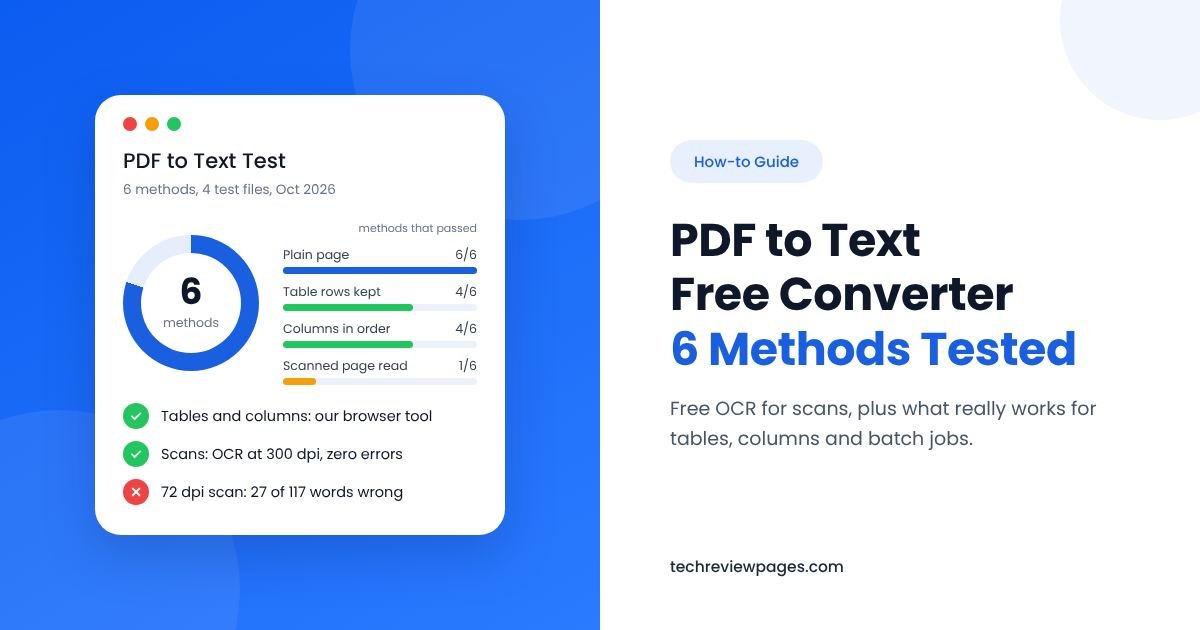
To find out what really works, we built four small test files at Tech Review Pages: a plain page, a two-column page, an invoice table and a scanned page. Then we ran six PDF to text extraction methods on each file, scoring every result against the correct text. This guide shares what we found, so you can choose the right method the first time.
You can also convert your file right here. Our free converter runs inside your browser, reads scanned pages with built-in OCR and never uploads your PDF anywhere.
Quick Answer: How Do I Convert PDF to Text?
For a normal PDF: drop it into the free converter below, then copy the text or download a .txt file. It takes a few seconds.
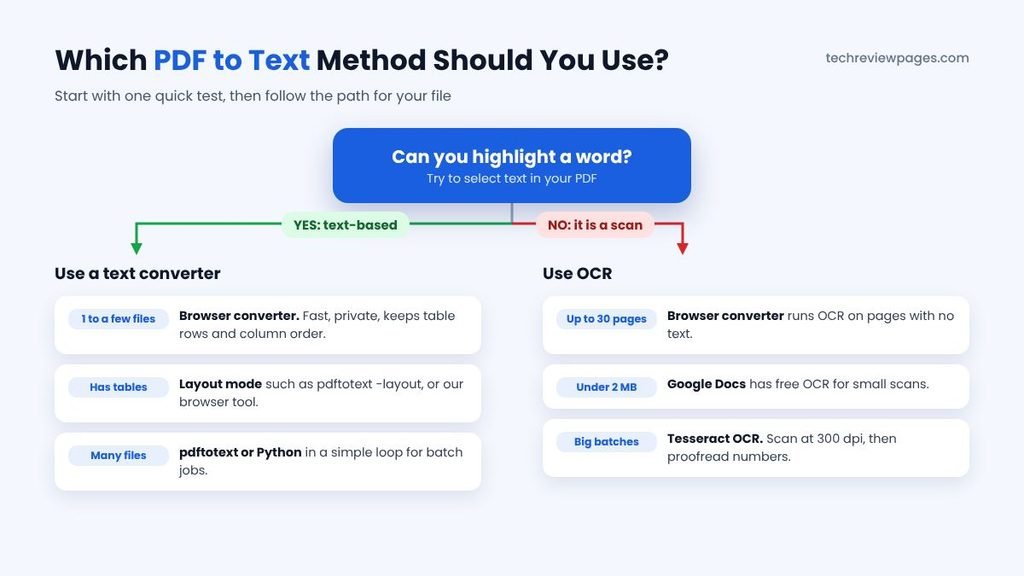
For a scanned PDF: you need OCR (optical character recognition). Our converter runs OCR automatically on pages with no text, for up to 30 pages per file.
Quick test: try to highlight a word in your PDF. If you can, it is text-based. If you cannot, it is a scan.
For many files: use a free command-line tool like pdftotext, or a short Python script.
Free PDF to Text Converter (Try It Here)
Our PDF to text converter works in any modern browser on a computer or phone. It reads the hidden text layer inside your PDF with pdf.js, the open-source PDF engine used in Firefox. When a page has no text layer, it switches to OCR with Tesseract.js, the browser version of the Tesseract engine from our test. A second tab does the reverse, turning your own text into a clean PDF.
- Private: your file is read on your own device, so nothing is sent to a server.
- Built-in OCR: scanned pages are read automatically in 9 languages, including English, Spanish, Hindi and Arabic.
- Several files at once: drop in more than one PDF to get one combined text file.
- Smart line breaks: keep the original lines, or join them into clean paragraphs.
- Free: there is no sign-up, watermark or daily cap.
- Text to PDF: paste text, pick Letter or A4, then download a PDF.
On our three text-based test files, the tool scored 100%. It also kept the table rows together while reading the two columns in the right order, which most methods could not do. It read a 300-page PDF in about 1.4 seconds on our test machine.
Tool Limits You Should Know
- OCR: up to 30 pages per file, because OCR in a browser often takes several seconds per page. Split bigger scans into parts.
- First OCR run: the tool downloads the language data once, which is a few megabytes. After that, it is faster.
- File size: there is no set limit, but very large files depend on your device memory. Phones handle less than computers.
- Passwords: locked PDFs must be opened with the password and saved as an unlocked copy first.
- Text to PDF fonts: the built-in font covers English and most Western European letters. Emoji and non-Latin scripts become “?”, so use Word or Google Docs for those languages.
How to Check That Your File Is Not Uploaded
You do not have to take our word for it. In Chrome or Edge, press F12 to open the developer tools, then click the Network tab. Now convert a PDF. You will see the tool load its code, plus the OCR language file if needed, but no request ever sends your PDF out. Your file is read with your browser’s own file reader.
What Is PDF to Text Conversion?
PDF to text conversion pulls the words out of a PDF, then saves them as plain text, usually in a .txt file. That is why people also call it PDF to TXT conversion. Plain text has no fonts, colors or layout, which makes it easy to search, edit, paste into another app or import into a spreadsheet.
How this works depends on the type of PDF you have. There are two main kinds, and each one needs a different approach.
Text-Based PDFs
Most PDFs made from Word, Google Docs or a website are text-based. Inside, they store real characters in a hidden text layer. A converter can read that layer directly, so the result is fast as well as accurate.
Scanned or Image PDFs
A scanned PDF stores only a picture of each page, so there are no real letters inside, just pixels. This explains why PDF text sometimes cannot be copied or searched. To get words out, software must first recognize each letter with OCR. That process takes much longer, while blurry scans lead to frequent mistakes.
We Tested 6 PDF to Text Methods: Here Is What Happened
Most guides list tools without showing how they handle hard files. So we made our own small test set on October 29, 2026. Every file had a known correct text, which let us measure accuracy exactly. With only four files, treat these results as a clear demonstration rather than a full benchmark.
- Plain text page: 117 words arranged in two paragraphs.
- Two-column page: a short story split across two side-by-side columns.
- Invoice table: four product rows showing quantity, unit price and total.
- Scanned page: the plain page turned into a slightly tilted, noisy 200 dpi image.
We then ran six extraction methods, each with its default settings, because that is what most people use:
- Our browser tool: the pdf.js text layer, rebuilt into lines by position.
- pdftotext (default): Poppler 24.02.0, command “pdftotext file.pdf”.
- pdftotext (layout): the same tool with the -layout option.
- pypdf 5.9.0: page.extract_text() on each page.
- pdfplumber 0.11.10: page.extract_text() on each page.
- Tesseract 5.3.4: each page rendered at 300 dpi, then read with OCR.
Both Python libraries have extra layout settings that can change the column and table results, so your numbers may differ if you tune them. Everything ran on a cloud Linux machine with 2 virtual CPU cores.

What We Learned
- Plain pages are easy: every method scored 100% on our simple text file.
- Columns pull one way, while tables pull the other. Methods that keep the layout kept all four table rows together, but they mixed the two columns line by line. Methods that read in story order got the columns right, but they split every table cell onto its own line.
- Only two methods won both. Our browser tool, along with Tesseract OCR, kept the table rows together while reading the columns in order.
- Text tools see nothing in a scan: all five text methods returned an empty result for the scanned page, while OCR read it perfectly.
- OCR is much slower: on our 2-core test machine, Tesseract needed about 2 to 10 seconds per page, compared with under a tenth of a second for the other methods.
The lesson is simple: check your PDF type first, then choose a method that fits your layout. If your file has tables, test a small part before you convert a long report.
How to Convert PDF to Text: Every Free Option Compared
There is no single best method for everyone. This table lists the main ways to convert PDF to text, showing which ones we tested ourselves.
| Method | Tested by Us? | OCR for Scans | Best For |
|---|---|---|---|
| Our browser converter | Yes | Yes, up to 30 pages | Private files, quick copy |
| Online converter sites | No, compared on their stated features | Some | Extra features like cloud imports |
| Adobe Acrobat | No | Pro version | Office users with a license |
| Microsoft Word | No | No | Simple layouts |
| Google Docs | No | Yes, files up to 2 MB | Free OCR for small scans |
| Desktop apps (PDFgear, PDF-XChange) | No | Varies | Offline work |
| pdftotext, pypdf, pdfplumber | Yes | No | Batch jobs, developers |
| Tesseract OCR | Yes | Yes | Large scanned batches |
1. Use a Free Online PDF to Text Converter
An online converter is the fastest choice for one or two files. Our tool above is the most private option, because it never uploads your file. If you need extra features, such as cloud imports or very large files, several well-known sites offer a PDF to text converter free of charge.
| Tool | What It Says It Offers for Free | Best For |
|---|---|---|
| Tech Review Pages | No upload, no sign-up; OCR for up to 30 pages; text to PDF | Private files |
| PDF2Go | Free with no account; files up to 50 MB; OCR option | Scans under 50 MB |
| FreeConvert | Batch conversion; Google Drive, Dropbox or OneDrive imports; Google’s AI Overview says files up to 1 GB | Many or large files |
| CloudConvert | 10 free conversions per day, no credit card | Clean .txt output |
| PDF24 Tools | Free; 4.8 stars from about 600 Google ratings (October 29, 2026) | Simple one-off jobs |
| iLovePDF | OCR PDF makes a searchable PDF, not a .txt file; you then copy the text | Making scans searchable |
| Chrome extensions | Several “PDF to Text” add-ons in the Chrome Web Store | Quick in-browser jobs |
These limits come from each tool’s own page or Google listing, except CloudConvert, whose pricing page we read directly. Limits change often, so check on the day you use them. Before installing a Chrome extension, read which permissions it asks for, because some can read every page you visit. Avoid uploading contracts, medical records or ID documents to any site you do not trust.
2. Export from Adobe Acrobat
If you have Adobe Acrobat, open the PDF, then choose the Export PDF tool. Pick Text (Plain) as the format before you save the .txt file. Acrobat Pro can also run OCR on scanned pages first. With the free Acrobat Reader, you can still select and copy text. Adobe’s Reader help page says exporting to Word, Excel or RTF needs a paid Export PDF subscription.
3. Open the PDF in Microsoft Word
Word can open most PDFs directly through File, then Open. Word converts it into an editable document, which you can then save with Save As by picking Plain Text (.txt). This method works well for simple layouts, but complex pages may shift around.
4. Use Google Docs for Scanned PDFs
Google Drive has free OCR built in, which makes it a handy option for scans. Upload your PDF to Drive, right-click it, then choose Open with Google Docs. According to Google’s help page, the file should be 2 MB or smaller. Text should be at least 10 pixels high, while the page must be right side up. Google also warns that tables, columns or footnotes are not likely to be detected.
5. Use a Free Desktop App
If you work offline a lot, a desktop PDF app can help. PDFgear says its Windows and Mac apps convert PDFs to TXT for free, with an OCR option for scans. PDF-XChange Editor for Windows has a free version with limited features, plus paid upgrades, so check which tools are included before you rely on it. Both are popular picks in Reddit’s r/pdf community, according to Google’s AI Overview.
6. Use pdftotext or Python for Batch Conversion
For dozens or hundreds of files, a free command-line tool saves hours. pdftotext comes with Poppler, a free toolkit for Windows, Mac or Linux. One line converts a file, while a simple loop handles a whole folder. Add the -layout option when you need to keep tables lined up.
Batch PDF to Text Examples
One file: pdftotext report.pdf report.txt
Keep the layout: pdftotext -layout invoice.pdf invoice.txt
Whole folder (Mac or Linux): for f in *.pdf; do pdftotext "$f"; done
Python: from pypdf import PdfReader, then join page.extract_text() for each page
Developers often use pypdf and pdfplumber inside Python applications. Because pypdf replaced the older PyPDF2 library, it is the one to use for new projects. pdfplumber is the better pick when you need table data. For a large app, paid cloud services such as Google Document AI or Adobe PDF Services offer a PDF to text API.
How to Convert a Scanned PDF to Text With OCR
Scanned PDF to text conversion always needs OCR. The software studies the shapes on the page, then guesses each letter, so image quality decides how accurate those guesses are.
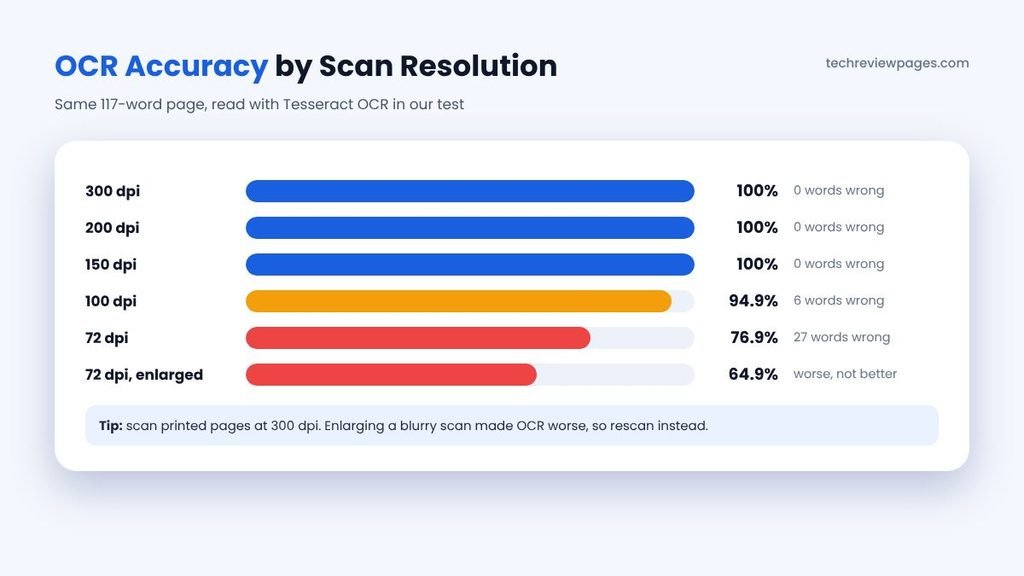
To show how much quality matters, we scanned the same 117-word page at five different resolutions, then ran Tesseract OCR on each version.
At 150 dpi or higher, OCR made zero mistakes, but at 100 dpi it got 6 words wrong. At 72 dpi, it got 27 of 117 words wrong, turning “PDF” into “POF” while “directly” became “grecty.”
We also tried a common shortcut, enlarging the blurry 72 dpi scan before running OCR, and it actually made things worse. Accuracy dropped from 76.9% to 64.9%, because enlarging also magnified the blur along with the noise. A fresh scan at a higher setting is the real fix. AI enlarging works differently from simple resizing. We cover those tools in our free AI image upscaler roundup, though we did not test them for OCR.
Tips for Better OCR Results
- Scan at 300 dpi for printed pages, since it is the safest setting for OCR.
- Keep the page flat and straight, because tilted or curved lines confuse OCR.
- Use good light if you take a phone photo, avoiding shadows across the text.
- Pick the right language in your OCR tool, since Tesseract and Google Docs both support many languages.
- Proofread names, numbers and dates, because these errors cause the most problems later.
How to Copy Text From a PDF
Sometimes you only need a paragraph, not the whole file. Here is the quickest way to copy text from a PDF:
- Open the PDF in your browser, Adobe Acrobat Reader or Preview on a Mac.
- Choose the text select tool, then drag across the words you need.
- Press Ctrl+C on Windows or Cmd+C on a Mac to copy.
- Paste into your document with Ctrl+V or Cmd+V.
If the copied text has broken lines, convert the file with our tool instead, choosing “Join into paragraphs.” If you cannot select anything at all, the page is a scan that needs OCR.
Need to Add or Edit Text in a PDF Instead?
Converting to plain text is not the same as editing a PDF. If you want to make text changes in a PDF file while keeping its design, you need a PDF editor. Here are the quick answers:
- How to add text to a PDF: open it in Microsoft Edge and click Add text, or use the Markup toolbar in Preview on a Mac. Both are free.
- How to edit text in a PDF: Adobe Acrobat Pro lets you click a line to retype it. A free workaround is to open the PDF in Word, make your changes, then save a new PDF.
How to Convert Text to PDF Online Free
Going in the other direction is much easier. To convert text to PDF online free, open the Text to PDF tab in our converter above. Paste your text, pick a page size and font size, then click Download PDF. Long text flows onto as many pages as it needs. For other languages, headings and more layout options, read our full guide on how to convert text to PDF online free.
You can also create a text to PDF file with apps you already have:
- Microsoft Word: File, then Save As, then choose PDF.
- Google Docs: File, then Download, then PDF Document.
- Any app on Windows or Mac: print the document, then choose Microsoft Print to PDF or Save as PDF.
PDF to Text With AI: When It Helps and When It Hurts
Many people now search for “PDF to text AI.” AI chat tools can read a PDF, then return its text or a summary. That can be a real help, but it works differently from a converter.
- Where AI helps: messy layouts, mixed tables and forms, or handwriting, where you want clean, structured output. AI can also rebuild a table as neat rows.
- Where AI hurts: AI writes text based on what it predicts, so it can quietly fix, drop or invent words. That is risky for contracts, research quotes or invoices.
- Our advice: use a regular converter when you need the exact words. Use AI when you want a summary or a cleaned-up version, then check it against the original.
PDF to Text vs PDF to Word: Which Should You Choose?
| Feature | PDF to Text (.txt) | PDF to Word (.docx) |
|---|---|---|
| Keeps fonts and images | No | Yes, mostly |
| File size | Very small | Larger |
| Best for | Search, data, coding, AI tools, quick copy | Editing a document while keeping its look |
| Works with any app | Yes | Needs a word processor |
| Handles tables | Varies by tool | Usually better |
Choose PDF to text when you only care about the words. Choose PDF to Word when you plan to edit a document that should still look professional after you share it.
Common PDF to Text Problems (With Fixes)
| Problem | Likely Cause | Fix |
|---|---|---|
| Blank output | The PDF is a scan with no text layer | Use OCR, such as Google Docs or Tesseract |
| Strange symbols or gibberish | The PDF uses fonts without proper character maps, an encoding problem | Run OCR on the page instead of extracting text |
| Lines break in odd places | PDFs store text line by line | Use a “join paragraphs” option or clean up by hand |
| Columns are mixed together | The tool reads straight across the page | Use a tool that reads in story order |
| Table cells on separate lines | The tool ignores the layout | Use a layout mode, or our browser tool |
| “Password required” error | The PDF is encrypted | Open it with the password, then save an unlocked copy if you have the right to |
Why Some PDFs Turn Into Gibberish
Inside a PDF, each letter is stored as a code that points to a shape in a font. A good PDF also includes a map that links each code back to a real letter. When that map is missing, the text looks fine on screen, yet a converter can only see meaningless codes. This encoding problem is common in older files or PDFs made by some design apps. Since the shapes still look right, OCR can read them correctly, which is why it works as a backup.
Is It Safe to Convert PDFs Online?
Most online converters upload your file to their own servers for processing. Many say they delete files after a few hours, but you cannot check that yourself. For private files, use a tool that works on your own device.
- Use a browser-based tool like ours, which reads the file locally.
- Use desktop software such as Word, Acrobat or pdftotext for sensitive work.
- Read the privacy policy of any online converter before you upload.
- Never upload tax forms, ID scans or medical records to an unknown site.
Conclusion: Check Your PDF Type First
Turning a PDF into plain text sounds simple, which it often is. For a normal text-based file, every method we tried got every word right on our test page, and our free browser tool does it without uploading anything.
Trouble usually starts with tables, columns and scanned pages. Our small test showed that many tools either break tables or mix up columns, while text tools return nothing at all from a scan. That is why the first step matters most: try to highlight a word. If you can, use a converter, but if you cannot, use OCR.
For scanned documents, image quality beats clever tricks. A 300 dpi scan gave perfect results in our test, while a blurry 72 dpi image got almost a quarter of the words wrong. Whatever method you choose, always proofread names, numbers and dates before you rely on the text.
Frequently Asked Questions
How do I convert a PDF to text for free?
Open our free converter, drop in your PDF, then copy the text or download a .txt file. Scanned pages are read with built-in OCR, up to 30 pages per file.
Why can’t I copy text from my PDF?
Your PDF is probably a scanned image with no text layer, or its owner may have locked copying. Use OCR for scans, or ask the owner for an unlocked copy.
What is the best PDF to text converter?
The answer depends on your file. On our four test files, our browser tool, along with Tesseract OCR, handled tables and columns best. pdftotext suits batch jobs, while Google Docs is a good free OCR choice for small scans.
Can I convert a scanned PDF to editable text?
Yes, you can with OCR. Our converter, Google Docs, Adobe Acrobat Pro or Tesseract can each turn a scan into editable text. Scan at 300 dpi for the best results.
How do I extract text from a PDF on a Mac?
Open the PDF in Preview, select the text, then copy it. You can also use our browser tool or install pdftotext with Homebrew.
How do I convert a PDF to text on my phone?
Open our converter in your phone’s browser, then choose your PDF. It works on Android or iPhone without installing an app, so it is a handy way to use PDF to text online.
Does iLovePDF convert PDF to text?
iLovePDF’s OCR tool turns a scan into a searchable PDF rather than a .txt file. You can then copy the text from it, or use a direct PDF to text converter instead.
How do I convert text to PDF online free?
Use the Text to PDF tab in our converter. Paste your text, choose a page size, then download the PDF.
Can AI convert PDF to text?
Yes, it can. AI tools are useful for messy layouts or summaries, but they can change or drop words. When you need the exact text, a regular converter is safer.
