


Shoppers cannot touch your product. They cannot turn it over or check the color in daylight. Your photos have to do that job for them. A dull, gray, crooked photo makes even a great product look cheap.
Ecommerce photo editing fixes that. It turns raw camera files into clean, bright, consistent images that meet marketplace rules. The good news is that you do not need to be a designer. Most edits follow the same simple pattern every time.
This guide from Tech Review Pages walks you through it. You will learn the core edits, the image rules for five big marketplaces. You will also get a step-by-step workflow. We also compare tools, real costs and outsourcing. Finally, we cover a 2026 rule change that every seller using AI images needs to know.
Quick Answer: What Is Ecommerce Photo Editing?
Ecommerce photo editing is the work of preparing product photos for online stores and marketplaces. The main tasks are:
- Background removal, usually to pure white or transparent
- Color correction, so the photo matches the real item
- Retouching to remove dust, scratches or lint
- Shadow creation to add depth
- Ghost mannequin edits for clothing
- Cropping and resizing to meet each marketplace’s rules
You can do it yourself with software, use AI tools for speed, or hire an editing service.
What Is Ecommerce Photo Editing?
Think of it as the last step between your camera and your listing. Raw product photos come straight from the camera. These unedited images often have a messy backdrop, a slight color cast or a tilted angle. Ecommerce image editing cleans all of that up.
It differs from general photo editing in one big way. The goal is not to make the photo artistic. The goal is to make it accurate, consistent and allowed on the platform. A product photo that looks stunning but shows the wrong shade of blue will lead to returns.
People also call this product photo editing, ecommerce photo retouching, product image retouching or catalog photo editing. Some say online product photography editing. All of these names mean the same basic job.
Why Ecommerce Product Photos Need Editing
Your product listing images are your shop window. They are the first thing a shopper judges, often before reading a single word. Good visual merchandising online starts with clean, matching photos.
Editing helps in three practical ways. First, clear photos make shoppers more confident, which supports a higher conversion rate. Second, accurate color sets the right expectation, so fewer orders come back. Third, a consistent look makes a small store feel like a trusted brand.
Marketplace image optimization matters too. On Amazon or Walmart, a main image that breaks the rules can get rejected. That means all the work on your listing goes unseen.
The Core Product Photo Editing Tasks
Most product photos need only a few of these edits. Bigger brands with large catalogs often use all of them.
| Edit | What It Does | When You Need It |
|---|---|---|
| Background removal (clipping path) | Cuts the product out of its backdrop | Almost always, for white background product images or a transparent background |
| Background replacement | Places the cutout on a new color or lifestyle scene | Social ads, banners, secondary images |
| Image masking | Selects soft or fuzzy edges like hair, fur or lace | Plush toys, wigs, knitwear, feathers |
| Product photo color correction | Fixes white balance, exposure and tint | Every photo, so colors match the real item |
| Dust removal and scratch cleanup | Cleans specks, lint, fingerprints and small flaws | Glossy items, electronics, dark fabrics |
| Shadow creation | Adds a drop shadow, natural shadow or reflection | When a cutout looks like it is floating |
| Ghost mannequin | Mannequin removal that makes clothing look 3D | Shirts, dresses, jackets |
| Jewelry photo retouching | Boosts sparkle, cleans metal, removes reflections | Rings, necklaces, watches |
| Skin retouching | Light cleanup on models | Fashion and beauty photos |
| Cropping and image resizing | Centers the item, straightens it, sets the size and resolution | Every listing, to meet each marketplace’s rules |
Clipping Path vs Image Masking: What Is the Difference?
These two terms confuse many sellers. Both cut a product out of its background. The difference is the edge.
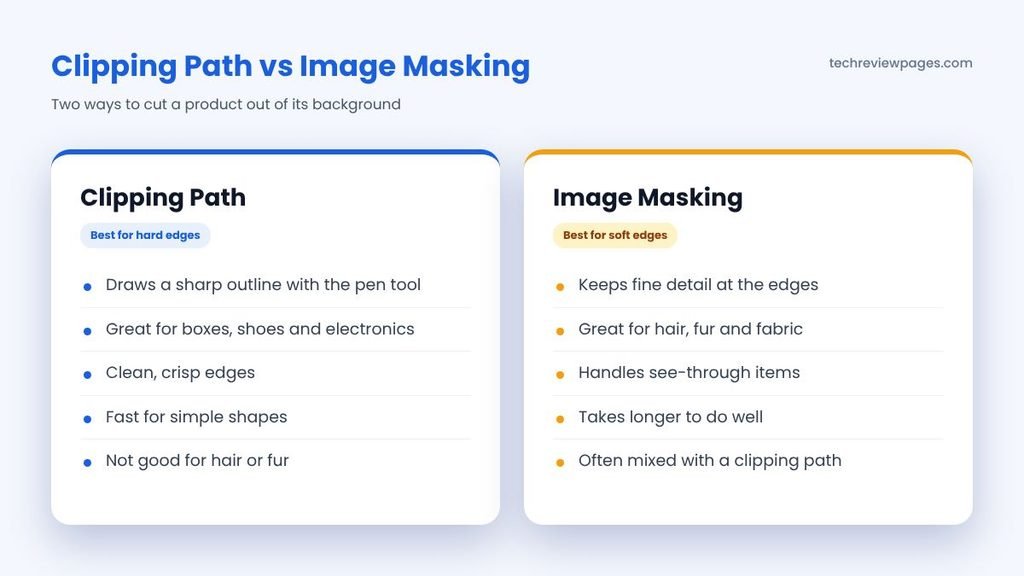
A clipping path is a hard outline drawn with a pen tool. It works best for items with clean, solid edges, like a phone, a box or a mug. Some editors call this deep etching.
Image masking handles soft edges. It uses a grayscale mask, sometimes called alpha channel masking, to keep fine details like hair or fur. A clipping path would chop those details off. Masking costs more because it takes longer.
Marketplace Image Requirements at a Glance
Every platform has its own rules. Breaking them can get your image rejected or your listing hidden from search. Here are the key numbers from each platform’s seller help pages. We checked every row on October 19, 2026.
| Platform | Main Image Background | Size Guidance | Other Key Rules |
|---|---|---|---|
| Amazon | Pure white (RGB 255, 255, 255) | At least 1,000 px on the longest side for zoom | Product fills about 85% of the frame. No text, logos or watermarks on the main image |
| Walmart | Pure white (RGB 255, 255, 255) | At least 1,500 x 1,500 px for zoom. Square 1:1 | Under 5MB. Do not upscale small images to reach the size |
| Shopify | Your choice, but stay consistent | 2,048 x 2,048 px square usually looks best | Up to 5,000 x 5,000 px and under 20MB. Keep one aspect ratio across products |
| Etsy | Your choice. Natural or styled scenes are common | At least 2,000 px wide and tall recommended | First photo should be landscape or square. Files over 1MB may fail to upload |
| eBay | Plain, neutral backdrop. White works best | Minimum 500 x 500 px. About 1,600 x 1,600 px recommended | Up to 24 photos. No badges, logos or watermarks |
Official pages: Amazon product image guide, Walmart image guidelines, Shopify product media, Etsy listing photo tips and eBay picture rules.
One size that works almost everywhere: a 2,000 x 2,000 px square master image clears the zoom minimum on Amazon, Walmart and eBay. It also meets Etsy’s 2,000 px tip and sits close to Shopify’s 2,048 px suggestion. Make one master, then export smaller copies only if a platform needs them. For Etsy, keep the file under 1MB so it uploads cleanly.
WooCommerce stores follow the settings of their theme, so pick one square size and stick with it. For Amazon product photo editing, the pure white background rule needs the closest attention. Shopify product image editing is more flexible, but consistency still matters.
Rules change often, so check each platform’s help page before a big upload. Amazon, for example, can suppress a listing from search if its main image breaks the rules.
Marketplace Image Compliance Checklist
- Main image on pure white if you sell on Amazon or Walmart
- Product fills most of the frame and sits in the center
- No text, badges, logos or watermarks on the main image
- Size meets the zoom minimum for that platform
- Colors match the real product under daylight
- File saved in sRGB color, as a JPG or PNG
- Same angle, crop and lighting style across your whole catalog
- AI-generated people tagged correctly on Amazon (see the case study below)
How to Edit Ecommerce Photos: Step-by-Step Workflow
This is the ecommerce product photo editing workflow most pros follow. It works for one photo or a thousand.
- Start with a good photo. Editing cannot save a blurry or very dark shot. Use soft, even light, a tripod and a plain backdrop. Five extra minutes here saves an hour of editing later.
- Pick your best shots. Delete the blurry, crooked or badly lit ones before you start. This is called culling.
- Set the color profile to sRGB. Most screens and browsers use sRGB. Other profiles can make colors look dull or wrong once you upload.
- Fix white balance and exposure. Remove any yellow or blue tint. Then brighten the photo until the white areas look truly white, without losing detail.
- Clean up the product. Use a healing brush or clone stamp to remove dust, lint, scratches and fingerprints. Keep real features, like texture or stitching.
- Remove the background. For background removal for product photos, use a clipping path on hard edges. Use masking on soft edges, or an AI tool for speed. Then check the edges at 100% zoom.
- Add a natural shadow. A soft shadow under the product makes it look grounded. Skip this if a platform or client wants no shadows.
- Crop, straighten and resize. Center the item. Keep the same margin on every photo, then size it for each marketplace.
- Export and name your files. Save as JPG for most photos or PNG for transparency. Use clear file names, such as “blue-ceramic-mug-front.jpg,” to stay organized.

How to Edit Product Photos in Bulk
Editing one photo at a time works for a small shop. Once you list dozens of products a week, you need a batch workflow. This kind of bulk product photo editing is how sellers keep hundreds of listings looking like one brand.
- Shoot in batches with locked settings. Keep the same lights, camera position and white balance for every item in a session. Consistent photos need fewer edits.
- Save a color preset. In Lightroom, fix one photo, then sync those settings to the rest of the shoot. You can also copy and paste settings between photos.
- Record an action for repeat steps. In Photoshop, record your crop, canvas size and export steps as an action. Then run it on a whole folder with File, Automate, Batch.
- Remove backgrounds in bulk. Canva can process up to 50 uploaded images per folder on paid plans. Photoroom offers batch editing too.
- Use a clear file naming system. Try “sku-color-angle.jpg,” such as “MUG014-blue-front.jpg.” Your store, your editor and your team will always find the right file.
- Automate with an API at scale. Large catalogs can connect an image API to their store or product database. remove.bg, Claid.ai and Flair.ai all list API access, so new product photos get processed as soon as they arrive.
- Spot-check every batch. Open a random sample at 100% zoom. Automation is fast, but it repeats mistakes just as fast.
Editing Tips by Product Type
| Product Type | Common Problem | Editing Tip |
|---|---|---|
| Clothing | Wrinkles, mannequin showing, colors off | Steam before shooting. Use a ghost mannequin edit. Check color against the real fabric |
| Jewelry | Dull metal, glare, dust specks | Shoot on gray or white. Clean dust at high zoom. Add gentle contrast to bring out sparkle |
| Shoes | Scuffs, uneven soles, harsh shadows | Shoot the outer side first. Clean scuffs. Add a soft reflection shadow |
| Glass and bottles | Reflections, see-through edges | Use masking, not a hard clipping path. Keep a light reflection so the glass looks real |
| Cosmetics | Color shifts, tiny label text | Match shades to the real product. Sharpen labels lightly so they stay readable |
| Electronics | Fingerprints, screen glare | Wipe before shooting. Replace a glary screen with a clean screen image, then label it as a sample if needed |
Best Ecommerce Photo Editing Software and Apps
The best photo editing software for ecommerce is the one that fits your volume, budget and skill. Here is how the main product photo editing software compares for online sellers. Prices are US list prices from October 2026.
| Tool | Type | Price | Best For |
|---|---|---|---|
| Adobe Photoshop | Desktop software | $22.99/month on an annual plan, or $263.88 paid upfront | Full control: masking, clipping paths, ghost mannequin, actions for batches |
| Adobe Lightroom | Desktop and mobile | $11.99/month (Lightroom plan) | Color correction and syncing one look across hundreds of photos |
| Affinity (by Canva) | Desktop software | Free | Photoshop-style editing with no subscription |
| Canva | Browser and app | Free; Pro $144/year | Fast cutouts, listing graphics, social posts |
| Photoroom | Phone and web app | Free plan; paid plans | AI background removal and batch edits for resellers |
| remove.bg | Web tool | Free previews; paid credits | One job only: quick, clean cutouts |
| Pixelcut | Phone app | Free plan; paid plan | AI product scenes and white backgrounds on a phone |
| GIMP | Desktop software | Free | Manual clipping paths on a zero budget |
Our main best photo editing software roundup compares these programs in more depth. If you are torn between the two Adobe apps, our Photoshop vs Lightroom breakdown explains which one suits product work.
Best AI Photo Editor for Ecommerce Images
AI tools are now the fastest way to remove backgrounds in bulk. Photoroom, remove.bg, Pixelcut and Canva can cut out a simple product in seconds. Some can also place it in an AI-made lifestyle scene.
Sellers in small business forums often share a useful warning, though. AI is great for basic cleanup, but it cannot rescue a blurry or very dark source photo. AI also struggles with glass, fine jewelry chains and see-through fabric. For those, a human editor or careful masking still wins.
If you use Canva for cutouts, our guide on how to remove background in Canva covers every step and its limits.
Best Photo Editing App for Ecommerce Resellers
Many resellers shoot and list straight from a phone. For them, an ecommerce photo editing app with one-tap background removal saves the most time. Photoroom and Pixelcut both focus on this job. Lightroom Mobile is stronger for fixing color.
More phone picks are in our best photo editing apps roundup. Shopping on a tight budget? Start with our free photo editing software picks.
Free and Online Ecommerce Photo Editing Options
You can do a lot of ecommerce photo editing online for free. The catch is usually a limit on size, speed or features. Here are honest options for a tight budget.
| Tool | Free Version Includes | Main Limit |
|---|---|---|
| Photopea | Photoshop-style editing in your browser, including the pen tool and masks | Ads on the free version. Manual work only |
| Affinity (by Canva) | Full desktop editing with no subscription | Must install on a computer |
| GIMP | Paths, masks, color tools on desktop | Older interface takes time to learn |
| remove.bg | Instant cutouts with free low-resolution previews | Full-size downloads cost credits |
| Canva free plan | Templates, cropping, simple color edits | No Background Remover or transparent PNG downloads |
| Adobe Express | Quick background removal online | Fewer fine-control tools than full editors |
One news item for remove.bg fans: its own site says background removal moves to Leonardo.Ai, another Canva company, starting December 1, 2026. Check the new home before you plan a big batch around it.
For a free workflow, try this mix. Use remove.bg previews or Adobe Express for quick cutouts. Then finish color, shadows and sizing in Photopea or Affinity.
AI Product Photography: What It Can and Cannot Do
AI product photography goes a step beyond editing. Instead of only cleaning a photo, it creates a new scene around your product. A plain mug on white can become a mug on a cozy kitchen table in seconds.
Tools like Flair.ai, Claid.ai, Pixelcut and Photoroom all offer AI scenes. Flair.ai is built around a drag-and-drop canvas for staged shoots. It can also place clothing on AI-generated models. Claid.ai focuses on high-volume catalog work, with background removal, upscaling and AI backgrounds. Most of these tools offer a free way to start, with paid plans for full use.
Where AI Product Photography Works Well
- Lifestyle images for social posts, ads and secondary listing photos
- Seasonal versions of the same product shot, like holiday or summer themes
- Testing several backgrounds before paying for a real photoshoot
Where It Falls Short
- It can change small details, such as logos, label text, stitching or the shape of a product.
- Lighting on the product may not match the AI scene, which looks fake up close.
- It cannot fix a blurry or very dark source photo.
- Amazon and Walmart main images still need a real product on pure white.
One more rule matters here. If an AI scene includes a realistic person who is fully AI-generated, Amazon now asks sellers to tag that image. The case study below explains how.
DIY, AI or Outsource: Which Is Right for You?
There are three ways to get your ecommerce product image editing done. Each one fits a different kind of seller.
| Option | Cost | Speed | Quality | Best For |
|---|---|---|---|---|
| Do it yourself | Your time, and software | Slow at first | As good as your skills | New stores with a small catalog |
| AI tools | Free to low monthly fees | Seconds per photo | Good on simple items, weak on tricky ones | Resellers and high-volume simple products |
| Editing service | Per image, often under $1 for basic cutouts | Next day is common | High and consistent | Brands with large catalogs or complex products |
Many growing stores mix all three. They use AI for simple white-background shots. They send hero images, apparel and jewelry to a pro. They keep a few quick fixes in-house.
How Much Does It Cost to Pay Someone to Edit Product Photos?
Ecommerce photo editing services price by the image. Product photo retouching services charge more than simple cutouts. Prices depend on how hard the edit is. Based on public price lists in October 2026, here is a rough guide:
- Basic background removal: large editing services start around $1 per image. For example, Pixelz listed $0.95 per image on its Professional plan in October 2026, with volume discounts for big brands.
- Freelance marketplaces: Fiverr’s product image editing category showed gigs from about $5 to $175 in October 2026. Upwork freelancers usually quote per project or per hour.
- Complex retouching: ghost mannequin, jewelry or heavy cleanup costs more per image, since it takes longer.
There are three main types of service. Manual studios draw clipping paths by hand. AI tools process photos automatically. Hybrid services mix both. Pixelz, for example, says it pairs AI-driven steps with expert retouchers, which helps keep quality steady across large catalogs. Many stores start with a freelancer, then move to a hybrid service as volume grows.
Ecommerce photo retouching services for fashion or jewelry sit at the top of that range. Rush delivery usually costs extra. Always ask for a small paid test batch before you commit to a large order.
How Much Does an Ecommerce Photoshoot Cost?
If you hire a photographer or an ecommerce photo studio, editing is often part of the price. Shopify’s January 2026 pricing guide puts most product photography between $50 and $350 per image. Day rates commonly run from $500 to $3,000, before extra staff or gear.
For a small store, that adds up fast. Many sellers shoot simple ecommerce product photos at home, then pay a pro only for key images. Others outsource ecommerce photo editing and nothing else.
How to Choose an Ecommerce Photo Editing Service
Image editing services for ecommerce range from solo freelancers to large studios. Outsourcing photo editing works well when you pick the right partner. Use this checklist before you hire:
- Order a test batch. Send 5 to 10 of your hardest photos, not your easiest.
- Check the turnaround time. Ask how fast they deliver at your real volume, not just for one photo.
- Ask about revisions. Find out how many fixes are free.
- Share a style guide. Give them your margins, shadow style, background color and file naming rules.
- Ask about AI use. Find out if they use AI tools. If they add AI-generated people, they must tag them for Amazon.
- Check file security. Make sure unreleased products stay private.
- Compare price per finished image. A cheap rate means little if half the photos need redoing.
Case Study: Amazon’s 2026 Label Rule for AI-Generated Models
AI model photos are one of the fastest-growing trends in fashion ecommerce. Instead of hiring a model, a brand can generate a realistic person wearing its clothes. In 2026, the rules around these images changed.
New York passed a law on “synthetic performers” in ads. It is General Business Law Section 396-b, added by bill S8420-A. The governor signed it on December 11, 2025, and it took effect 180 days later, on June 9, 2026.
The law covers commercial ads, not only TV or social ads. A business that creates an ad must clearly disclose a realistic, AI-made person when it knows one is there. Fines are $1,000 for a first violation and $5,000 after that. Platforms that only publish ads are exempt. That is why the work falls on sellers, since sellers create the product images used to sell their goods.
On July 22, 2026, Amazon told its third-party sellers what this means for them, as CNBC reported the next day. Amazon’s guidance says sellers must tag any product image that shows a photorealistic person created entirely by AI. This covers main images, other listing photos and A+ content. The tag goes into the image file’s metadata before upload. Amazon then uses it to show shoppers a disclosure.
What Needs the Tag, and What Does Not
| Image Type | Tag Needed? |
|---|---|
| A fully AI-generated, realistic model | Yes |
| An AI-made person in the background of a lifestyle scene | Yes |
| A real model whose photo was retouched or relit with AI | No |
| A real photo where AI swapped only the background | No |
| A product photo with no people | No |
| Cartoon characters or non-realistic illustrations | No |
The tag itself is simple. Using an IPTC-compatible metadata editor, sellers add the keyword “contains-synthetic-performer” to the image’s subject field. The details sit in Amazon’s product image guide on Seller Central. The guide does not list a special penalty for missing tags. Still, Amazon can remove images that break its policies.
This is not the first time AI models caused trouble. Back in March 2023, Levi’s faced public backlash after announcing a test of AI-generated models with the studio Lalaland.ai. As Rangefinder reported, the brand later clarified that the AI images would add to real photo shoots, not replace them.
Lessons for Ecommerce Sellers
- Sort your image library. Separate fully AI-made people from real models. Only the first group needs the tag.
- Put the rule in your briefs. If an editing service or designer creates AI models for you, require the tag in every delivery.
- Edits on real photos are still fine. Background removal, color correction and retouching on real models do not need the tag.
- Watch other regions. Rules on AI content are also growing in California and the European Union. Check them if you sell there.
- Be honest with shoppers. Accurate images build trust. They also lower returns caused by products that look different in person.
Common Ecommerce Photo Editing Mistakes to Avoid
- Over-editing colors. A brighter red might look nice, but it leads to returns if the real product looks different.
- Off-white backgrounds. A background that is almost white can fail Amazon’s pure white rule. Check it with a color picker.
- Rough cutout edges. Jagged edges or leftover halos look cheap. Always zoom to 100% before export.
- Floating products. A cutout with no shadow can look fake. Add a soft, natural shadow.
- Mixed styles. Different crops, angles and shadows make a store look messy. Use one style guide.
- Tiny files. Small images cannot zoom. Upscaling them often looks blurry, and Walmart does not allow it.
- Text on the main image. Badges or sale banners break the main image rules on Amazon and eBay.
Product Photo Style Guide (Copy and Fill In)
Copy this into a document and fill it in. Share it with anyone who edits your photos.
Background: Pure white (255, 255, 255) for main images; light gray for lifestyle shots
Canvas: 2,000 x 2,000 px square
Product margin: Product fills about 85% of the frame, centered
Shadow: Soft natural shadow under the product, 20% opacity
Color: sRGB, matched to the real item under daylight
Angles: Front, side, back, detail, scale (in hand or next to a common object)
File names: product-color-angle.jpg
AI people: Tag “contains-synthetic-performer” for Amazon
New to editing in general? Our photo editing software for beginners guide is a gentle place to start. Pro studios handling big catalogs should also read our professional photo editing software review.
Conclusion: Better Edits, More Trust, Fewer Returns
Ecommerce photo editing is not about making products look better than they are. It is about showing them clearly, accurately and consistently. Start with a sharp, well-lit photo. Then fix the color, clean up flaws, remove the background, add a soft shadow and resize for each marketplace.
Choose your method based on volume. Small stores can do it themselves with free or low-cost software. Resellers can lean on AI apps for speed. Brands with big catalogs or tricky products often get the best value from an editing service.
Keep the marketplace rules close, since one off-white background can hide a listing. If you use AI-generated models, tag them correctly on Amazon. Most of all, make sure every photo matches what arrives at the customer’s door. That honesty builds trust, earns reviews and keeps returns low.
Frequently Asked Questions
What is ecommerce photo editing?
It is the process of preparing product photos for online stores. It usually includes background removal, color correction, retouching, shadow creation and resizing to meet marketplace rules.
What are some good photo editing services for ecommerce?
Options include hybrid AI-plus-human services like Pixelz, AI platforms like Claid.ai and freelancers. Good ecommerce image editing services offer a free or paid test batch, fast turnaround, clear per-image prices and free revisions. Compare a few ecommerce product photo editing services on your hardest photos. Freelance marketplaces like Fiverr and Upwork work well when you need an ecommerce image editing service for small or one-off jobs.
How much does it cost to pay someone to edit photos?
Basic background removal from large services often costs about $1 or less per image. Freelance gigs start near $5. Complex retouching like ghost mannequin or jewelry costs more.
How much does an ecommerce photoshoot cost?
Shopify’s 2026 guide puts most product photography at $50 to $350 per image. Photographers often charge $500 to $3,000 per day.
What is the best photo editing app for resellers?
Apps with one-tap background removal, like Photoroom or Pixelcut, save resellers the most time. Lightroom Mobile is a strong pick for fixing color.
What is the best software to edit product photos for Shopify?
Photoshop gives the most control. Affinity is a free alternative. For speed, an AI tool like Photoroom works well. Export square images at about 2,048 x 2,048 px for Shopify.
Can I use AI to edit product photos?
Yes. AI is great for background removal and simple cleanup. On Amazon, you must tag images that show fully AI-generated realistic people.
How do I keep product images consistent across marketplaces?
Use one style guide for background, margins, shadows and angles. Shoot a large master image, then resize copies for each platform.
Is there free AI product photography?
Yes, with limits. Flair.ai, Claid.ai, Pixelcut and Photoroom all offer a free way to try AI scenes. Full-size downloads or larger batches usually need a paid plan.
Is free ecommerce photo editing good enough?
For small stores, often yes. Free tools like Photopea, GIMP or Affinity cover the basics. Paid tools save time once you list many products.
