

Photo editing software turns a good photo into one you are proud to share. It can fix dark shots, brighten dull colors or remove small flaws in a few clicks. The hard part is choosing a tool, because there are dozens of options at every price.
Some editors cost nothing, while others charge a monthly fee or a one-time price. A few are built for professional photographers, while others are made for quick social media posts. At Tech Review Pages, we compared 14 popular photo editing programs by price, skill level, features and system needs as of October 2026.
This guide answers a simple question: what is the best photo editing software for you? You will find our top picks, a comparison table and a 3-year cost breakdown. You will also learn how to choose the right tool for your photos.
Quick Answer: What Is the Best Photo Editing Software?
Best overall: Adobe Lightroom, for editing and organizing large photo libraries.
Best for detailed retouching: Adobe Photoshop, the industry standard for layers and masks.
Best free photo editing software: Affinity by Canva, a full desktop editor that became free in October 2025.
Best one-time purchase: DxO PhotoLab 10, known for clean RAW files and strong noise reduction.
Best for beginners: Canva or Adobe Express, for quick edits and text on photos.
Best open-source option: GIMP 3.2, a free editor for Windows, Mac and Linux.
What Is Photo Editing Software?
Photo editing software is a program that lets you change and improve digital images. You can crop a photo, fix the colors or remove objects you do not want. Some people call it image editing software, a photo editor or picture editing software. All of these names describe the same kind of tool.
Most editors fall into one of four groups:
- Professional desktop editors such as Photoshop, Lightroom and Capture One. They offer deep control for serious photographers.
- Free open-source editors such as GIMP, Darktable or RawTherapee. They cost nothing but often take longer to learn.
- AI photo editors such as Luminar Neo. They use artificial intelligence to fix photos with one slider.
- Online or mobile photo editing apps such as Canva, Pixlr or Snapseed. They are best for quick edits on the go.
Knowing which group fits you will make your choice much easier. We explain each group in more detail in our guide to photo editing for beginners.
Comparison Table: Best Photo Editing Software at a Glance
This table shows the key facts for each editor in our list. Prices are in US dollars and were checked in October 2026.
| Software | Best For | Price | Platforms | Skill Level |
|---|---|---|---|---|
| Adobe Lightroom | Editing and organizing | $11.99/mo (annual plan) | Windows, Mac, mobile, web | Beginner to pro |
| Adobe Photoshop | Retouching and layers | $19.99/mo with Lightroom | Windows, Mac, iPad, web | Intermediate to pro |
| Affinity by Canva | Free Photoshop alternative | Free | Windows, Mac | Intermediate |
| DxO PhotoLab 10 | RAW quality, one-time buy | $249.99 one-time | Windows, Mac | Intermediate |
| Capture One Pro | Studio and tethered shooting | $18/mo (annual) or about $28 monthly | Windows, Mac, iPad | Pro |
| Luminar Neo | AI editing | From $79/yr or $139 once | Windows, Mac | Beginner |
| PhotoDirector 365 | Value AI editing | $64.99/yr (free version too) | Windows, Mac, mobile | Beginner |
| GIMP 3.2 | Free open-source editing | Free | Windows, Mac, Linux | Intermediate |
| Darktable / RawTherapee | Free RAW editing | Free | Windows, Mac, Linux | Intermediate |
| Paint.NET | Free simple editing on Windows | Free | Windows | Beginner |
| Corel PaintShop Pro | Windows users who avoid subscriptions | About $99.99 once (often on sale) | Windows | Beginner to intermediate |
| ACDSee Photo Studio Home | Budget editing and organizing | $69.99 one-time | Windows, Mac | Beginner |
| Canva / Adobe Express | Text on photos and social posts | Free plans | Web, mobile | Beginner |
| Snapseed / Pixlr / Photopea | Quick phone and browser edits | Free (Photopea has ads) | Mobile, web | Beginner |
Best Subscription Photo Editing Software
Subscription editors get new features every few months. You pay a monthly fee for as long as you use them. They suit frequent editors who want the latest tools.
1. Adobe Lightroom: Best Overall Photo Editing Software
Adobe Lightroom is the best photo editing software for most photographers. It combines editing with a strong photo library, so you can find any image in seconds. The sliders for exposure adjustment, white balance and color correction are easy to understand.
Lightroom uses non-destructive editing, which means your original file always stays safe. You can undo any change at any time. It also handles batch photo editing well. You can copy your edits from one photo, then paste them onto hundreds of others.
The Lightroom plan costs $11.99 per month on an annual plan, according to Adobe’s pricing page. It includes 1TB of cloud storage. Lightroom Classic is the desktop-only version that many professionals prefer for large libraries.
- Good for: Event photographers, travel shooters or hobbyists with big libraries.
- Watch out for: The annual plan has an early cancellation fee, which we explain in the case study below.
2. Adobe Photoshop: Best for Retouching and Photo Manipulation
Adobe Photoshop is the most famous photo manipulation software in the world. It is built for pixel-level work, such as portrait retouching, combining several images or removing large objects. Its tools for layers and masks set the standard that other editors copy.
Photoshop also includes classic image retouching tools like the clone stamp tool and the healing brush. No other photo retouching software offers as much control over skin and blemish fixes. Newer AI features, such as Generative Fill, can extend a background or add objects from a short text prompt.
Most photographers get Photoshop through the Adobe Photography plan. It costs $19.99 per month on an annual plan. Lightroom is included in the same plan. We compare the two apps side by side in our Photoshop vs Lightroom guide.
- Good for: Professional photo editing, graphic design and detailed retouching.
- Watch out for: It has a steep learning curve for beginners.
- What users say: Many users praise the tools but complain about Adobe’s subscription terms, which the case study below explains.
3. Capture One Pro: Best for Studio Photographers
Capture One Pro is a favorite among studio and fashion photographers. It is known for very accurate colors and excellent tethered shooting. Tethering lets you connect your camera to a computer, so each photo appears on the screen right after you take it.
Capture One raised its prices by about 6% in mid-2026. Since July 2026, the Pro plan costs about $18 per month on an annual plan. If you pay month to month, it costs about $28. A one-time license is also sold for roughly $350.
- Good for: Product photography, studio portraits and color-critical work for print.
- Watch out for: It costs more than Lightroom. It also takes time to learn.
- What users say: After two price rises, some photography news sites asked whether it is still worth the cost.
4. Luminar Neo: Best AI Photo Editor
Luminar Neo from Skylum is built around AI tools. Its best-known feature is sky replacement, which swaps a dull gray sky for a bright one in one click. Other tools can relight a portrait, remove power lines or improve skin with a single slider.
Luminar costs from $79 per year, or $139 for a one-time license, based on prices listed in mid-2026. The one-time license only covers updates for that version, while the yearly plan includes future versions. Skylum runs sales often, so check its website before you buy. You can see how it compares with other AI tools in our list of the best AI photo editors.
- Good for: Beginners and landscape photographers who want fast results.
- Watch out for: It offers less fine control than Lightroom or Photoshop.
- What users say: On photography forums, some long-time users question how long one-time licenses keep getting updates.
5. CyberLink PhotoDirector 365: Best Value AI Editor
CyberLink PhotoDirector 365 is a friendly editor built for home users. It includes AI object removal, one-click color fixes and a large library of stock photos. Its layout is simpler than Photoshop, so new users can get good results quickly.
The subscription lists at $64.99 per year, and CyberLink often runs discounts. A free version called PhotoDirector Essential has no time limit, but it locks some AI tools. CyberLink also sells PhotoDirector 2027 as a one-time purchase for Windows or Mac.
- Good for: Beginners who want AI tools at a low yearly price.
- Watch out for: The free version restricts advanced AI tools and some export options.
Best One-Time Purchase Photo Editing Software
A one-time purchase, or perpetual license, means you pay once to keep the software. You may need to pay again for big upgrades later. These editors suit people who want to avoid monthly bills. We list more choices in our guide to photo editing software with no subscription.
6. DxO PhotoLab 10: Best RAW Photo Editor You Can Buy Once
DxO PhotoLab is one of the best RAW photo editors for image quality. A RAW file holds all the data from your camera sensor, while a JPEG file is smaller and already processed. PhotoLab is famous for its noise reduction and automatic lens correction, which clean up photos taken in low light.
DxO released PhotoLab 10 on September 1, 2026, according to Notebookcheck. The new version costs $249.99 from DxO. Owners of version 8 or 9 can upgrade for $129.99. New features include AI depth masks, a color wheel for color grading and automatic sensor dust removal.
Read our full DxO PhotoLab 10 review for details. We cover more RAW tools in our guide to the best RAW photo editors.
- Good for: Landscape and wildlife photographers who shoot in RAW.
- Watch out for: Its photo library tools are weaker than Lightroom.
7. Corel PaintShop Pro: Best for Windows Users
Corel PaintShop Pro is a desktop photo editor that only runs on Windows. It offers layers, retouching tools and simple AI fixes for a one-time price. The Ultimate edition lists at about $99.99, and Corel often puts it on sale. Many home users like its familiar look. It also does not require a subscription.
PaintShop Pro is a solid pick if you want Photoshop-style tools on a PC at a lower cost. We list more Windows choices in our guide to photo editing software for PC.
8. ACDSee Photo Studio: Best Budget Option
ACDSee Photo Studio combines a fast photo viewer with editing tools. ACDSee Photo Studio Home 2027 costs $69.99 as a one-time purchase on ACDSee’s store. The Professional and Ultimate editions add stronger RAW tools plus layers.
ACDSee is a good choice for families who mainly need to sort thousands of photos with a few simple fixes. Its RAW editing is not as strong as DxO or Lightroom.
Best Free Photo Editing Software
Many people ask, “What is a good free photo editing software?” Free tools have improved a lot in the past two years. Here are the best photo editing software free options for desktop users.
9. Affinity by Canva: Best Free Photoshop Alternative
Affinity was once a paid rival to Photoshop. On October 30, 2025, Canva merged Affinity Photo, Designer and Publisher into a single free app called Affinity, according to Creative Bloq. All of its core editing tools are free with a Canva account.
Affinity offers layers, masks, RAW editing and advanced retouching. It runs on Windows and Mac. Canva’s AI tools, such as Generative Fill, require a paid Canva plan.
- Good for: Anyone who wants Photoshop-level tools without a monthly fee.
- Watch out for: Some advanced AI features are locked behind Canva’s paid plan.
Read our full Affinity by Canva review for a closer look.
10. GIMP 3.2: Best Open-Source Photo Editor
GIMP is the best-known free and open-source image editor. Version 3.0 arrived in March 2025 after seven years of work. It added non-destructive filters, so you can change or remove an effect after you apply it.
The newer GIMP 3.2 arrived in March 2026. It adds link layers and vector layers, which let you resize logos or shapes without losing quality.
GIMP runs on Windows, Mac and Linux. It supports plugins and scripting for advanced users. Many beginners find the layout confusing at first, so plan to watch a few tutorials.
- What users say: On Reddit photography forums, beginners often say GIMP feels hard to learn, while others prefer simpler web apps.
11. Darktable and RawTherapee: Best Free RAW Editors
Darktable and RawTherapee are free programs made for RAW files. They act like a free version of Lightroom’s editing tools. Both offer curves and levels, a histogram, sharpening plus noise reduction.
These tools are powerful, but they have many settings. They work best for patient users who enjoy learning. Our full list of free photo editing software covers more options in detail.
12. Paint.NET: Best Free Editor for Windows
Paint.NET is a free photo editor for Windows PCs. It is much easier to learn than GIMP, yet it still supports layers, effects and plugins. Many people use it for quick fixes, simple retouching or resizing images.
Paint.NET only runs on Windows, so Mac users should try GIMP instead. A paid version in the Microsoft Store helps support the developer, but the free download works just as well.
Best Online and Mobile Photo Editing Apps
13. Canva and Adobe Express: Best for Text on Photos
Canva and Adobe Express are browser-based editors with free plans. They make it easy to crop, add filters and remove backgrounds. They also work well as photo text editing software, since you can add stylish text, logos and stickers to any image.
Both apps include ready-made templates for Instagram, YouTube thumbnails and flyers. They suit small business owners and social media users who need quick designs.
14. Snapseed, Pixlr and Photopea: Best Quick Editors
Snapseed is a free photo editor for phones made by Google. It offers precise tools for brightness, texture and clarity, plus a healing tool. Pixlr Express runs in your web browser with free AI tools included.
Photopea is a free editor that runs in your browser and looks a lot like Photoshop. It can even open Photoshop PSD files. The free version shows ads, while a paid plan removes them.
These apps are perfect for fast edits when you are away from your computer. We list more browser tools in our guide to the best online photo editors. We compare more options in our guide to the best photo editing apps.
Which Photo Editor Fits Your Type of Photos?
So what is the best software for editing photos? The answer depends on what you shoot. This table matches common photo types with the editor that fits them best.
| Type of Photos | Best Choice | Free Alternative |
|---|---|---|
| Portraits and headshots | Adobe Photoshop | Affinity by Canva |
| Landscapes and travel | Adobe Lightroom or DxO PhotoLab 10 | Darktable |
| Product photos for online stores | Capture One Pro | GIMP 3.2 |
| Weddings and events (hundreds of photos) | Adobe Lightroom Classic | Darktable |
| Social media posts with text | Canva | Adobe Express (free plan) |
| Quick phone edits | Lightroom mobile | Snapseed |
| HDR editing and dramatic skies | Luminar Neo | GIMP 3.2 with plugins |
How Much Does Photo Editing Software Really Cost Over 3 Years?
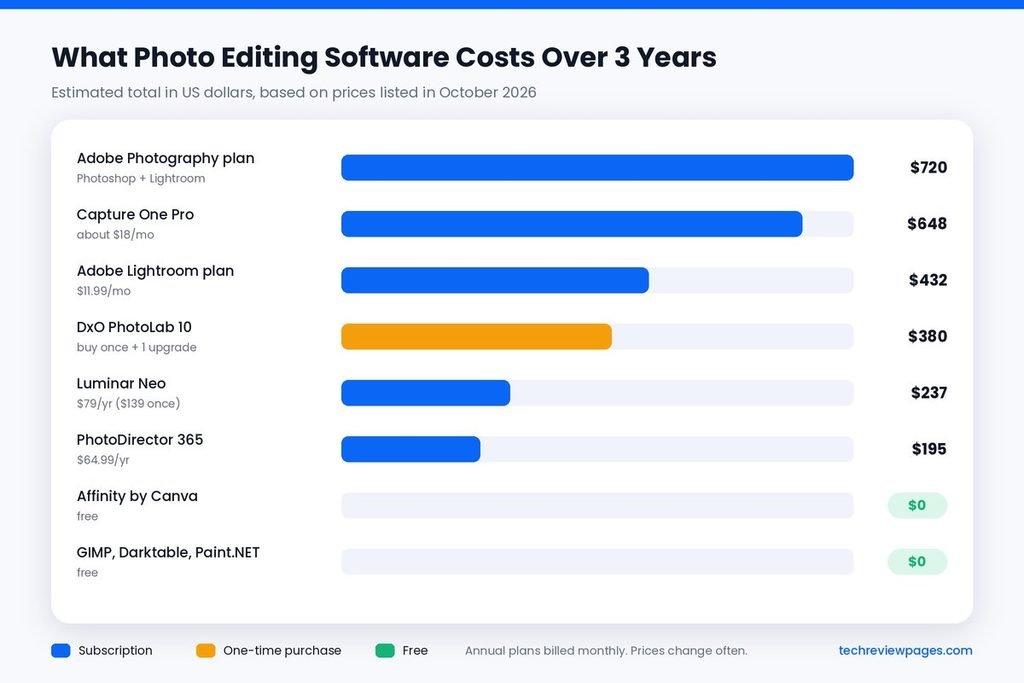
A low monthly price can add up over time. This table shows the total cost of each editor if you use it for three years. We based it on the prices each company listed in October 2026.
| Software | Pricing Model | Estimated 3-Year Cost |
|---|---|---|
| Adobe Lightroom plan | $11.99 per month | About $432 |
| Adobe Photography plan (Photoshop + Lightroom) | $19.99 per month | About $720 |
| Capture One Pro | About $18 per month | About $648 |
| Luminar Neo | $79 per year, or $139 once | About $237 (or $139 once) |
| PhotoDirector 365 | $64.99 per year (list price) | About $195 |
| DxO PhotoLab 10 | $249.99 once, plus one $129.99 upgrade | About $380 |
| Affinity by Canva | Free | $0 |
| GIMP 3.2, Darktable, RawTherapee, Paint.NET | Free | $0 |
This simple math shows why many hobbyists now look at one-time or free tools. Professionals often still choose Adobe, since the time they save is worth more than the fee.
Your choice should depend on how often you edit. It should also reflect how much the extra features help your work.
Case Study: What Adobe’s Subscription Lawsuit Teaches Buyers
In 2024, the US Federal Trade Commission (FTC) sued Adobe over how it sold its subscriptions. The FTC said Adobe placed new buyers on an “annual, paid monthly” plan by default. Many customers thought they could cancel at any time.
According to the FTC, people who canceled in the first year had to pay an early termination fee. That fee was 50% of the payments left on the plan. The FTC also said the fee was buried in small print or hidden behind small icons. Some customers reported dropped calls and many transfers when they tried to cancel.
In March 2026, Adobe agreed to settle the case. The company will pay $75 million to the government. It will also provide $75 million in free services to some customers. Adobe denied any wrongdoing in its statement about the deal.
Around the same time, the market shifted. Canva made Affinity free in October 2025. DxO also kept selling PhotoLab as a one-time purchase. Buyers now have more real choices outside the subscription model.
Lessons for Anyone Buying Photo Editing Software
- Read the plan type before you pay. “Annual, paid monthly” is a 12-month contract, even though you pay each month.
- Look for the cancellation terms on the checkout page. Take a screenshot for your records.
- Always use the free trial first, since most paid editors offer one for 7 to 30 days.
- Set a calendar reminder a few days before your trial or contract ends.
- Compare the 3-year cost of a subscription with a one-time license before you decide.
How to Choose Photo Editing Software
Use these six questions to narrow your list. If you answer them honestly, the right choice usually becomes clear.
What Is Your Skill Level?
Beginners should start with a simple tool like Canva, Lightroom or Luminar Neo. Photo editing for beginners works best with clear controls that give fast results. Advanced users can handle Photoshop, Capture One or GIMP.
Do You Shoot in RAW or JPEG?
If your camera saves RAW files, you need a program with a good RAW converter. Lightroom, DxO PhotoLab, Capture One and Darktable all handle RAW files well. Phone photos and JPEG files work with almost any editor.
Which Computer Do You Use?
Some tools only run on one system. PaintShop Pro is Windows-only, while Pixelmator Pro is Mac-only. If you use an Apple computer, read our guide to photo editing software for Mac for more choices.
Does Your Computer Meet the System Requirements?
Modern editors use a lot of memory, especially for AI tools. For smooth editing, aim for at least 16GB of RAM and a recent graphics card. Many programs use GPU acceleration to speed up noise reduction and masks. Check each company’s system requirements page before you buy.
Subscription or One-Time Purchase?
A subscription gives you constant updates and cloud storage. A perpetual license costs more at the start but saves money over time. Students can often get a student discount on Adobe and other paid plans.
Which Features Do You Really Need?
Make a short list before you compare tools. Most people need these basic photo editing tools:
- Cropping and resizing
- Exposure, white balance and color correction
- Filters and presets for a consistent look
- Noise reduction and sharpening
- A healing brush or clone stamp tool for small flaws
Advanced users may also want layers and masks, HDR editing, lens correction or batch processing. If you only need simple photo enhancement software, a free app will often do the job.
Key Photo Editing Terms Explained
Reviews of digital photo editing tools often use technical words. Here is a quick guide to the most common ones.
| Term | What It Means |
|---|---|
| Non-destructive editing | Your original photo stays untouched. Changes are saved as instructions you can undo. |
| Layers and masks | Layers stack edits on top of each other. Masks let you apply an edit to only part of the photo. |
| Histogram | A graph that shows how bright or dark your photo is. |
| Curves and levels | Tools that fine-tune brightness and contrast in different parts of the image. |
| Batch processing | Applying the same edit to many photos at once. |
| Lens correction | Fixing the bending and dark corners that some lenses cause. |
| Texture and clarity | Sliders that add or reduce fine detail and mid-tone contrast. |
| RAW file | An unprocessed camera file that keeps all the image data for editing. |
| Tethered shooting | Connecting a camera to a computer so each photo appears on screen right away. |
| Generative fill | An AI tool that adds or removes objects from a short text prompt. |
One more note: some editors offer watermark removal tools. Only use them on your own photos. Removing a watermark from someone else’s image can break copyright law.
Desktop Photo Editor vs Online Editor
A desktop photo editor is installed on your computer. It works offline with large RAW files. It also gives you more control. Online editors run in your browser on any device, but they are usually simpler.
Most serious photographers use a desktop program for main edits. They may use a phone app for quick fixes while traveling.
Conclusion: Choose the Photo Editor That Fits How You Work
There is no single best photo editing software for everyone. The right choice depends on your skill level, your photos and your budget.
For most photographers, Adobe Lightroom offers the best balance of editing power and photo organization. Photoshop remains the top choice for detailed retouching. If you want to avoid monthly fees, DxO PhotoLab 10 gives excellent RAW results for a one-time price. Affinity by Canva has changed the market by offering professional tools for free.
Before you pay, use the free trials. Edit the same few photos in two or three programs, then compare how easy each one feels. Check the cancellation terms on any subscription, as the Adobe case shows why this step matters.
Start with the tool that matches your needs today. You can always switch later as your skills grow. For more help, read our free photo editing software guide or our Photoshop vs Lightroom comparison next.
Frequently Asked Questions
What is the best software for photo editing?
Adobe Lightroom is the best software for photo editing for most people. It is easy to learn with strong RAW support. It also organizes large photo libraries. Photoshop is better for detailed retouching.
What is the best free photo editing software?
Affinity by Canva is the best free photo editing software for desktop users in 2026. GIMP 3.2 is the best open-source choice. Canva and Snapseed are the best free options for quick edits.
Which photo editor is 100% free?
GIMP, Darktable, RawTherapee and Paint.NET are 100% free with no account or paid features. Affinity is free but needs a free Canva account, and its AI tools require a paid plan. Photopea is free to use, though it shows ads. Canva, Pixlr and Adobe Express have free plans with paid upgrades.
What is a good photo editing software for beginners?
Canva, Adobe Express and Luminar Neo are good picks for beginners. Lightroom is also beginner-friendly once you learn the main sliders.
Is free photo editing software good enough?
Yes, free tools are good enough for most home users. Affinity and GIMP both include layers, masks plus RAW editing. Paid tools mainly add speed, AI features and better photo organization.
Can I buy Photoshop without a subscription?
No, Adobe sells Photoshop only as a subscription. If you want to pay once, look at DxO PhotoLab, PaintShop Pro or the free Affinity app.
What photo editing software do professionals use?
Most professional photographers use Adobe Lightroom Classic and Photoshop. Studio photographers often prefer Capture One Pro for its color accuracy and tethered shooting. Our guide to professional photo editing software compares these pro tools in more detail.
Which photo editing software works on both PC and Mac?
Most top editors work on Windows as well as Mac. This includes Lightroom, Photoshop, Affinity, DxO PhotoLab, Capture One, Luminar Neo and GIMP.
