

Opening a photo editor for the first time can feel like sitting in an airplane cockpit. There are dozens of sliders, panels and strange words like “clarity” or “dehaze.” Many new editors give up before they finish their first picture.
The good news is that some programs are built to make learning easy. They offer one-click fixes, step-by-step guides and presets that show you what each tool does. At Tech Review Pages, we looked at 9 beginner-friendly editors in October 2026 to find the ones that are easiest to learn. Here is our list of the best photo editing software for beginners 2026 has to offer.
So, what is the best photo editing software for beginners? This guide gives you a clear answer. You will also get a 7-step plan for your first edit, a list of common beginner mistakes and tips to learn faster. For tools at every skill level, browse our complete best photo editing software roundup.
Quick Answer: What Photo Editing Software Is Best for Beginners?
Best overall for beginners: Adobe Lightroom. It has an Auto button, helpful presets and works on both phone and computer.
Easiest one-slider editing: Luminar Neo, whose AI sliders fix light and color in seconds.
Best for guided learning: Photoshop Elements 2027, which walks you through edits step by step.
Top free pick for social media: Adobe Express or Canva.
Top free phone app: Snapseed.
Best free desktop editor to grow into: Affinity by Canva.
How We Picked These Beginner Editors
We checked each program’s official website, pricing page and help pages on October 18, 2026. We then judged how friendly each tool is for someone with no editing experience.
We looked for five things in each tool. These were a clear layout, a one-click auto fix, one-tap presets, built-in lessons and a safe way to undo mistakes. We also noted the price, since many beginners do not want to pay much at first.
The learning-curve ratings in this guide are our editorial judgment. We based each one on how quickly a new user could finish a basic edit without outside help. Tools with strong auto fixes, presets and built-in guidance scored as easier. Tools with crowded screens and few guides scored as harder.
What Makes Photo Editing Software Good for Beginners?
Easy photo editing software is not just about having fewer buttons. Good beginner photo editing software helps you learn while you work. Look for these features before you choose:
- A one-click auto fix. It gives you a good starting point, so you can see what a better photo looks like.
- Filters and presets. These apply a full look in one tap. You can then study which sliders the preset changed.
- Guided edits or built-in tutorials. These walk you through tasks like brightening a face or blurring a background.
- Undo history. A clear history panel lets you step back through every change without fear.
- Non-destructive editing. Your original photo stays safe, so mistakes are never permanent.
- Room to grow. A good entry-level photo editing software should still be useful after your first few months.
Price matters too, since many beginners start with a free app. They upgrade once they know what they need.
Beginner Photo Editors Compared
This table shows how easy each tool is to learn, based on our own rating. All prices are listed in US dollars as of October 18, 2026.
| Software | Learning Curve | Free? | Platforms | Price |
|---|---|---|---|---|
| Adobe Lightroom | Easy | Free mobile version | Windows, Mac, iPhone, Android, web | $11.99/mo (Lightroom plan, billed annually) |
| Luminar Neo | Very easy | Free trial | Windows, Mac | $129 to $199 once (by edition), or from $79 a year |
| Photoshop Elements 2027 | Easy | 7-day trial | Windows, Mac | $99.99 for a 3-year license |
| Adobe Express | Very easy | Yes | Web, iPhone, Android | Free; Premium $9.99/mo |
| Canva | Very easy | Yes | Web, iPhone, Android | Free; Pro $144/yr |
| Snapseed | Easy | Yes | iPhone, Android | Free |
| PhotoScape X | Easy | Yes | Windows, Mac | Free; Pro version extra |
| Affinity by Canva | Moderate | Yes | Windows, Mac | Free |
| GIMP | Steep | Yes | Windows, Mac, Linux | Free |
| Pixlr | Easy | Yes (with ads) | Web, iPhone, Android | Free; Plus from $1.99/mo yearly |
| Fotor | Very easy | Yes (freemium) | Web, iPhone, Android | Free; Pro plan extra |
| Adobe Firefly | Very easy | Free daily generations | Web, phone | Paid plans for more credits |
| Photoshop on the web | Moderate | No (7-day trial only) | Web | Included with paid Photoshop plans |
The 9 Best Photo Editing Software for Beginners
1. Adobe Lightroom: Best Overall for Beginners
Adobe Lightroom is a user-friendly photo editor that grows with you. Its Auto button fixes light and color in one click. Presets let you try different looks, then you can open the sliders to see exactly what changed.
The mobile app includes interactive lessons that show you how real photographers edit a picture. This makes it one of the best photo editing software for beginners with tutorials built right in. Edits you make on your phone can sync to your computer with a paid plan.
The free mobile version includes presets and basic editing tools. Premium tools, such as Generative Remove and Lens Blur, need a paid plan. Adobe charges $11.99 a month for the Lightroom plan on annual billing. It includes the desktop apps, the mobile app and 1TB of cloud storage.
- Why beginners like it: Clean layout, helpful presets and lessons inside the app.
- Keep in mind: The annual plan charges a fee if you cancel early, so read the terms first.
2. Luminar Neo: Easiest One-Slider Editing
Skylum designed Luminar Neo around artificial intelligence. Its Accent AI slider can fix brightness, contrast and color balance in a single move. Other one-click tools can swap a dull sky or brighten a face.
This makes Luminar a great simple photo editor for people who want fast, good-looking results. Skylum sells it as a yearly plan from $79 or as a one-time purchase. Published one-time prices in 2026 were $129 for the Desktop edition, $159 for Cross-Device and $199 for Max. Skylum runs frequent sales, so check the current price before you buy.
- Why beginners like it: Big results with very little effort.
- Keep in mind: You learn less about how editing works when AI does most of the job.
3. Photoshop Elements 2027: Best for Guided Learning
Photoshop Elements is the beginner version of Photoshop. It has three modes: Quick, Guided and Advanced. Guided mode walks you through tasks one step at a time, such as fixing color, perfecting a landscape or combining two photos.
Elements 2027 costs $99.99, according to Adobe. However, it is not a forever license. The license lasts three years, then the editor stops opening, as the case study further down explains. A 7-day free trial is available.
Some search results still mention Elements 2026, but Adobe’s current version is 2027. Stores like Best Buy also sell Elements download codes, sometimes at different prices. Check the version year on the box, then remember the three-year license term.
- Why beginners like it: Step-by-step guided edits teach real skills.
- Keep in mind: You must buy it again after three years to keep editing.
4. Adobe Express: Best Free Editor for Quick Social Posts
Adobe Express is a very easy browser-based editor. It can crop, resize for each social network and add text in minutes. Ready-made templates help you turn a photo into a post, flyer or story.
The free plan is enough for most beginners. Upgrading to Adobe Express Premium costs $9.99 a month. It adds premium templates plus more storage.
5. Canva: Best for Adding Text to Photos
Canva is popular with small business owners and students. Its text overlay tool, stickers and templates make it easy to create eye-catching graphics. Basic photo tools like cropping images, filters plus brightness and contrast are free.
Some features, such as the background remover, need Canva Pro. Canva Pro is $144 a year for a single user, as listed by Canva in October 2026.
6. Snapseed: Best Free App for Phone Photos
Snapseed is Google’s free photo editor for iPhone and Android. Its tools are easy to find, yet precise enough to fix one small part of a picture. A healing tool removes spots, while a selective tool brightens just one area.
Of all the free photo editing apps, Snapseed is one of the most easy to learn. It is a great simple photo editing app for beginners on iPhone or Android. Since everything is free, you can explore every tool without worrying about cost.
7. PhotoScape X: Easy Free Desktop Editor
PhotoScape X is a free editor for Windows and Mac with a friendly, tabbed layout. It covers the basics like cropping, image resizing, red-eye removal and simple filters. It also includes fun extras like collages and GIF making.
A paid Pro version unlocks more tools. Some users find the number of features a little overwhelming at first, so start with the Editor tab.
8. Affinity by Canva: Best Free Editor to Grow Into
Affinity is a professional-level editor that Canva now gives away for free. Signing in requires a Canva account, which costs nothing. It is not the easiest tool on this list. However, it is a smart choice if you want one free program you can keep using for years.
Start with the Photo tools for simple fixes. Later, you can learn layers and masks or RAW photo editing. You can even start retouching photos without switching software. Affinity runs on Windows and Mac.
9. GIMP: Free but Best for Patient Learners
GIMP is a powerful free program that runs on Linux, Windows or Mac. It can do almost anything, but its layout is not beginner-friendly. Many new users need several photo editing tutorials before they feel comfortable.
Choose GIMP if you enjoy learning on your own and want a tool that costs nothing forever. If you just want quick results, start with one of the easier picks above.
More Tools Beginners Ask About
Pixlr runs in a browser or on your phone. Its free version shows ads. Paying $1.99 a month for Plus, billed yearly, makes it ad-free. Fotor is another easy online editor with templates and one-click effects, though many tools need its paid plan.
Adobe Firefly is Adobe’s AI image tool. Its free plan offers a limited number of AI generations each day, which is handy for testing ideas like background changes. Photoshop on the web is a different story. It is not free, since it comes with paid Photoshop plans or the 7-day trial, even though some online videos describe it as free.
Darktable and RawTherapee are free RAW editors that many forum users recommend. They are powerful, yet complex, so save them for later. Paint.NET is a simple free choice for Windows, while Apple Photos is already on every Mac and iPhone.
On the paid side, Corel PaintShop Pro is an affordable photo editor for Windows. Corel lists the Ultimate edition near $99.99, with frequent discounts. Polarr offers a free plan for JPEG photos, while RAW support needs its paid plan.
What Beginners Say on Reddit and in Forums
Beginner threads on Reddit often point new editors toward Lightroom first, since so many photographers use it. In beginner Facebook groups, fans of free software often suggest GIMP, Darktable or RawTherapee instead. Both views make sense: Lightroom is easier to learn, while the free tools save money if you are patient.
Best Photo Editing Software for Beginners Free of Charge
Many people ask, “What is the best free photo editing software for beginners?” For phones, Snapseed is the easiest free choice. For social media, Canva and Adobe Express are simple to learn. On a computer, PhotoScape X is friendly, while Affinity gives you room to grow.
Free tools are a smart way to learn the basics before you spend money. Our full guide to free photo editing software compares each free tool’s limits, such as ads or sign-up rules. If you plan a free download, get it from the official website only. Fake download ads have spread malware before, which our free software guide explains.
Best Beginner Editor for Your Device
| Your Device | Easiest Paid Pick | Easiest Free Pick |
|---|---|---|
| Windows PC | Photoshop Elements 2027 | PhotoScape X or Paint.NET |
| Mac | Luminar Neo | Apple Photos |
| iPhone | Lightroom mobile with a premium plan | Snapseed or free Lightroom mobile |
| Android phone | Lightroom mobile with a premium plan | Snapseed or free Lightroom mobile |
| Chromebook or school laptop | Canva Pro | Adobe Express or Photopea |
Have an Old or Slow Computer?
AI-heavy desktop apps can run slowly on older laptops. If your computer struggles, start with a browser editor like Adobe Express, Photopea or Pixlr. You can also edit on your phone with Snapseed, since modern phones handle photo edits well.
For more choices by computer type, read our guides to photo editing software for Mac and photo editing software for PC.
How to Edit Photos for Beginners Step by Step
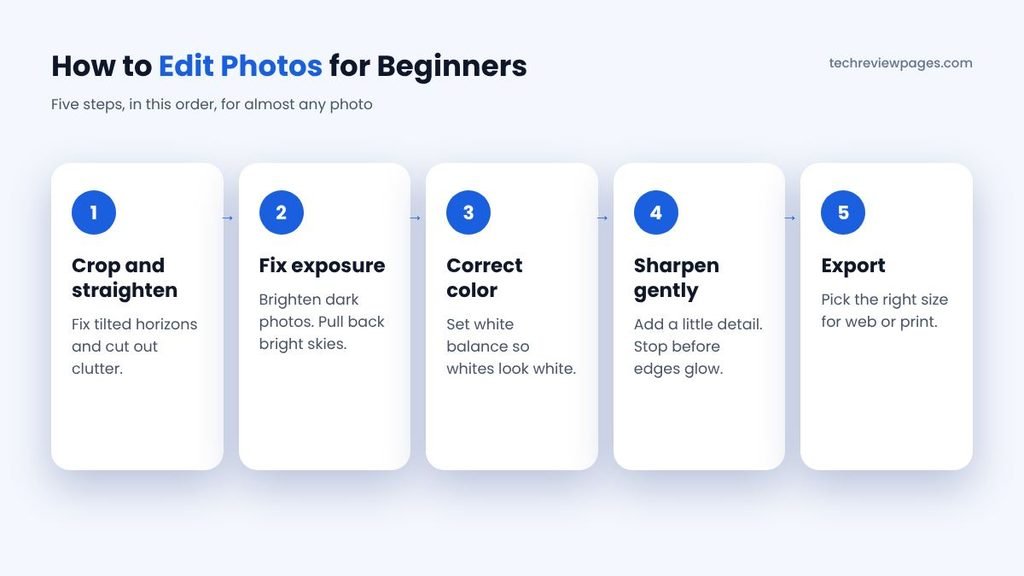
Photo editing for beginners comes down to a few core skills. Most photo editing programs use the same basic photo editing tools. Follow these seven steps in order, and your photos will improve right away. This simple photo editing workflow works in Lightroom, Snapseed or almost any editor.
- Crop and straighten. Use the crop tool to remove empty space, then straighten a tilted horizon.
- Adjust exposure. Adjusting exposure is the most important fix. Move the exposure slider until the photo looks neither too dark nor too bright.
- Set brightness and contrast. Add a little contrast to make the photo look less flat.
- Fix white balance. If the photo looks too blue or too orange, move the temperature slider until white objects look white. This simple color correction makes skin look natural.
- Tune the colors. Raise vibrance or saturation by a small amount. Small changes look more natural than big ones.
- Sharpen and reduce noise. Sharpening images makes edges look crisp, so add a small amount. Use noise reduction for grainy photos taken in low light.
- Resize and export. Save a copy in the right size for where you will share it, such as Instagram or email.
A quick tip: many editors show a histogram, which is a small graph of light and dark tones. If the graph is crowded against the left edge, the photo is too dark. If it is crowded against the right edge, the photo is too bright.
A One-Hour Practice Plan
You can learn basic photo editing in one hour with focused practice. Pick five of your own photos, then follow this plan:
| Time | What to Do |
|---|---|
| Minutes 0 to 10 | Open your editor and try the Auto button on each photo. Notice which sliders it changes. |
| Minutes 10 to 25 | Edit one photo using the 7 steps above, without Auto. |
| Minutes 25 to 40 | Try three presets on a second photo. Then adjust one preset to make it your own. |
| Minutes 40 to 50 | Fix a dark or orange indoor photo using exposure and white balance. |
| Minutes 50 to 60 | Compare your edits with the originals. Export your two favorites. |
5 Beginner Photo Editing Mistakes to Avoid
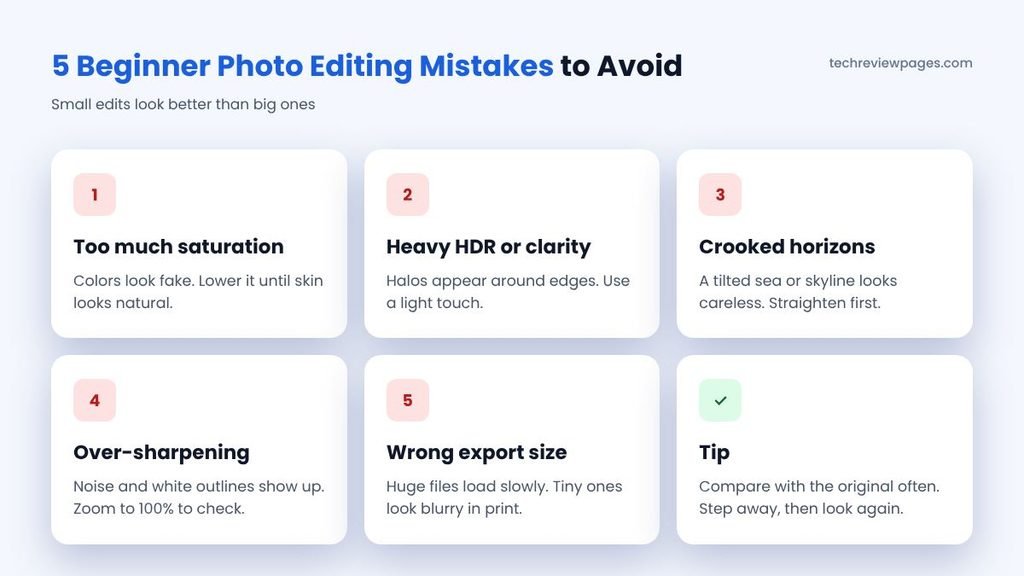
- Pushing saturation too far. Bright, glowing colors may look exciting at first, but they often look fake later.
- Editing with your screen at full brightness. Your photo may then look too dark on other screens. Use a medium brightness level instead.
- Over-sharpening. Too much sharpening creates harsh edges and white outlines.
- Deleting the original. Always keep the untouched file, so you can start again with new skills.
- Copying every popular filter. Presets are great for learning, though your own style will come from small changes you choose yourself.
Case Study: Why Beginners Should Read the License Before They Buy
For years, Photoshop Elements was the classic “buy it once, keep it forever” editor for beginners. That changed in late 2024, when Adobe switched to time-limited licenses.
Starting with the 2025 editions, Adobe ended the perpetual license for its Elements software. Buyers could now use the program for up to three years before it would stop working. Adobe linked the change to its new web and mobile companion apps. Some customers who valued a simple one-time purchase were unhappy with the switch.
The same rule applies to Photoshop Elements 2027 today. Adobe’s product page says the license lasts three years from the day you redeem it and does not renew. After that, the editor no longer opens, though you can still reach your photo catalog in the Elements Organizer.
What Beginners Can Learn From This
- Look for the words “perpetual,” “lifetime” or “license term” on the product page before you pay.
- Work out the real yearly cost. For example, $99.99 spread over three years works out to about $33.33 per year.
- Keep your original photos in normal folders, so you never depend on one program to see them.
- Try the free trial first, then decide if the tool is worth the price.
- If you want software you truly own, our list of no-subscription photo editing software can help.
Photo Editing Tips to Learn Faster
A good tool helps, but practice matters most. The fastest way to learn photo editing is a little practice every day. Beginner photography editing gets easier with these photo editing tips:
- Follow one beginner tutorial series on YouTube from start to finish.
- Use the built-in lessons in apps like Lightroom.
- Edit one photo every day, even if it only takes five minutes.
- Save a before and after of each edit to track your progress.
- Join a friendly photo editing community forum to ask questions and get feedback.
Free vs Paid Photo Editors for Beginners
Free tools are perfect for learning the basics. They cost nothing, so you can test several apps and see which layout feels natural.
Paid tools usually offer better automatic fixes, smoother apps plus more lessons. If you want photo editing software for beginners with no subscription, choose Luminar Neo’s one-time license or a free app. A paid editor makes sense once you edit often or want to share polished photos online. Most paid programs offer a free trial, so test before you buy.
When Should You Move Beyond Beginner Software?
You are ready for more advanced tools when you start asking for things your app cannot do. Common signs include wanting batch editing for many photos, working with RAW files or needing detailed retouching.
At that point, look at the tools professionals use. Our professional photo editing software article explains the next step. You can also compare Photoshop vs Lightroom to see which suits your style.
Conclusion: Start Simple, Then Grow
The best photo editing software for beginners is the one you will actually open and practice with. For most new editors, Adobe Lightroom offers the best mix of easy tools, presets and built-in lessons.
If you want the fastest results, Luminar Neo can fix a photo with one slider. Photoshop Elements 2027 teaches through guided edits, though its license lasts only three years. Free users can start with Snapseed on a phone, Canva or Adobe Express in a browser, or PhotoScape X on a computer.
Whatever you choose, follow the seven basic steps: crop, exposure, contrast, white balance, color, sharpening and export. Avoid heavy filters, keep your originals and practice a little every day.
Keep this photo editing guide handy while you practice. Within a few weeks, editing will feel natural. When you are ready for more power, you can move up to advanced tools without starting from zero.
Frequently Asked Questions
Which photo editing app is best for beginners?
Snapseed is the best free app for beginners on a phone. Adobe Lightroom is the best paid app, since it works on both phones and computers.
What is the easiest photo editing software for beginners?
Luminar Neo is the easiest paid choice, thanks to its one-slider AI tools. Canva and Adobe Express are the easiest free options for quick edits.
What is a good photo editing software for beginners on a budget?
Snapseed, Canva and PhotoScape X cost nothing. Photoshop Elements is a low-cost paid option, though its license lasts three years.
What photo editing software is best for beginners who want to go pro later?
Adobe Lightroom is the best path, since many professionals use it too. Affinity is the best free option you can grow into.
How do I start photo editing as a beginner?
Pick one easy app, then practice the 7 steps in this guide on your own photos. Start with crop, exposure and white balance before trying advanced tools.
What do most photographers use to edit photos?
Many photographers use Lightroom with Photoshop. The professional photo editing software page lists their full toolkit.
Which photo editor is 100% free for beginners?
Snapseed is fully free on phones, while GIMP is fully free on computers. See our free photo editing software guide for the complete list.
Is Photoshop good for beginners?
Full Photoshop is powerful but hard to learn. Most beginners do better with Lightroom or Photoshop Elements first.
Do beginners need to shoot in RAW?
No, you do not need RAW at first. JPEG photos are fine while you learn. Try RAW later, once you are comfortable with exposure and white balance.

Related guides
- 14 best photo editing software, free and paid: the full list once you outgrow beginner tools.
- Best free photo editing software: start learning without paying anything.
- Best professional photo editing software: where to go when you are ready for pro tools.
- How to remove a background in Canva: an easy first editing project.

7 Comments
Pingback: How to Remove Background in Canva: Step-by-Step Guide for Free and Pro Users – Tech Review Pages
Pingback: Photoshop vs Lightroom: Key Differences and Which One You Need – Tech Review Pages
Pingback: 14 Best Photo Editing Software: Free and Paid Picks Compared - Tech Review Pages
Pingback: Free Photo Editing Software: The 15 Best Free Editors in 2026 - Tech Review Pages
Pingback: Ecommerce Photo Editing: How to Make Product Photos Sell
Pingback: How to Remove Color From an Image: 4 Easy Ways
Pingback: Best Professional Photo Editing Software: What Pro Photographers Really Use